Tag Archives: MS Access VBA Programming

MS Access VBA Programming Code Snippets

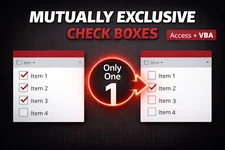
Mutually Exclusive Check Boxes in a Microsoft Access Continuous Form

A very common UI requests I hear from Microsoft Access developers goes something like this:

I have a continuous form with a check box, and only one record should be allowed to have it checked at a time.

Think :

  • Primary Phone
  • Default Address
  • Main Contact
  • Preferred Email
  • etc.

In a perfect world, we’d just use option buttons. But continuous forms don’t work that way where each record is rendered independently, so Access gives us many check boxes, not one logical group.

So how do we enforce mutual exclusivity?

Let’s walk through this step by step, starting with a straightforward After Update solution and progressively refining it into something cleaner, reusable, and faster. You pick the approach that suits your needs.
 
Continue reading

Running Command Prompt Commands from VBA

As someone who works extensively in Microsoft Access and Excel, I often need to execute Command Prompt commands from within VBA. The standard WScript.Shell.Run method can run commands easily, but it does not capture or return their output.

To fill that gap, I created CP_GetOutput a VBA function that executes any Command Prompt command and retrieves its textual output, ready to be used in your VBA project.

Today I’m sharing both the code, a brief explanation of how it works and a few examples of who it can be used.
 
Continue reading

Mastering Loops in VBA for Office Developers

Loops form the backbone of iterative programming in VBA for Microsoft Access, allowing developers to process recordsets, validate form inputs, or manipulate arrays efficiently without writing repetitive code. VBA provides four primary loop structures, Do loops (with While/Until variations), For Next, and For Each, each designed for specific scenarios such as conditional repetition or fixed-range traversal. Selecting the right loop depends on factors like whether the iteration count is known upfront, the need for early exits, or the data structure involved, such as DAO recordsets common in Access databases.
 
Continue reading

Making Invisible Internet Explorer Instances Visible

While investigating behavior I had previously documented in which SuperAntiSpyware spawns hidden iexplore.exe processes. Rather than terminating them blindly, I wanted a way to make every existing Internet Explorer instance visible so I could see exactly what was going on.

Internet Explorer is not just a browser. It is also a COM automation server. This allows applications, scripts, and services to create Internet Explorer instances in the background for tasks such as report generation, authentication flows, or legacy system integrations. When those instances are created with their visibility turned off, or are never explicitly shown, they can remain running long after their original purpose has passed.

Task Manager will show the process, but it offers no insight into why it exists or what it is doing. Ending the process may remove the symptom, but it does not explain the behavior and can potentially disrupt the software that created it.

What I wanted was simple.

If Internet Explorer is running, I wanted to see it, see what it was up to.
 
Continue reading

How to Terminate a Windows Process Using VBA (Shell, WMI, and API Methods)

Following my previous post on working with Windows processes, specifically:

this article explores different techniques for terminating a Windows process using VBA.
 
Continue reading

How To Add a Custom Icon To ‘Pop Up’ Form and ‘Overlapping Windows’ Forms

Designing a professional Microsoft Access application often comes down to the small details like the icons that appear on your pop-up forms and overlapping window forms. By default, Access displays a generic icon, which can make even a well designed database feel unfinished.

Adding custom form icons in Microsoft Access not only enhances the visual appeal of your application, but also improves usability by helping users quickly identify open forms in the Windows taskbar or Alt-Tab view. For client-facing databases, custom icons also reinforce branding and professionalism, especially when distributing Access front ends.

In an ideal world, Microsoft Access would expose a simple, built-in property that allows developers to specify a custom icon for each form. Unfortunately, no such property exists. Despite Access offering extensive control over form appearance and behavior, the form icon remains hard-coded to the default Access icon, leaving developers with no native way to change it. As a result, implementing custom form icons requires working around this limitation by leveraging Windows APIs and graphics libraries approaches that are powerful, but far from obvious. Fortunately, with a bit of Windows API magic, we can still achieve exactly the result we want.

In this article, you’ll learn multiple techniques for setting custom icons on Access forms, including:

  • Using native Windows APIs with .ico files
  • Supporting PNG, JPG, and other image formats with GDI+
  • Loading icons dynamically from table attachments

All examples work with Popup forms and databases using Overlapping Windows (not Tabbed Documents), and are compatible with both 32-bit and 64-bit Access.
 
Continue reading

Get a Directory Listing Using VBA

Mastering Directory Listings in VBA: Exploring Folders and Subfolders with the Dir Function and FSO

Automating directory listings in VBA is a common requirement for Excel, Access, and other Microsoft Office solutions. Whether you need to list folders, enumerate subdirectories, or recursively scan an entire directory tree, VBA provides multiple ways to interact with the Windows file system each with distinct strengths and limitations.

In this article, you’ll learn how to generate directory listings in VBA using several proven techniques, including the built-in Dir function, the FileSystemObject (FSO) model, Shell.Application, WMI, and even PowerShell integration. We’ll explore when each approach is appropriate, how to handle recursive folder traversal safely, and why certain methods, especially Dir!, fail in nested scenarios.

If you’ve ever searched for “VBA list folders and subfolders”, “VBA recursive directory listing”, or “Dir vs FileSystemObject in VBA”, this guide walks through real-world, production-ready examples you can drop directly into your projects. By the end, you’ll know exactly which technique to use for simple folder scans, deep recursive listings, or advanced system-level automation.

Methods covered in this guide include:

  • Dir function (non-recursive directory listings)
  • FileSystemObject (FSO) for recursive folder traversal
  • Shell.Application for Windows-based folder enumeration
  • WMI for system-level and remote directory queries
  • PowerShell integration from VBA

 
Continue reading

Using VBA to List Active Processes

Because of some recent work I’ve been doing trying to embed applications within an Access form (so far I’ve managed to embed Brave, Edge, PowerShell ISE, Excel, Word, …) I’ve been working with listing the active computer processes. So I thought I’d share a few procedures I’ve developed to aid me with that task.

I tried a couple different approaches to get the process listing.

Initially, I was using the cmd:

tasklist /fo csv /nh

and although it did work, it was slow and created unnecessary lag in my process (no pun intended). Eventually I turned to my tried, tested and true friend WMI!
 
Continue reading

Microsoft Adds Native RegExp to VBA Ahead of VBScript Deprecation

Microsoft officially announced the phased deprecation of the VBScript library in October 2023, with a detailed timeline publicly shared in May 2024. VBScript has been a foundational technology in Windows scripting and VBA projects for decades. Its deprecation impacts key VBScript components such as VBScript.RegExp for regular expressions, Scripting.FileSystemObject (FSO) for file system operations, and Scripting.Dictionary collections, which many VBA developers currently rely on.
 
Continue reading

Determine The Size of Access Attachments

Helping out in a Forum question in which the Access user was asking how we could determine the file size of files stored as Attachments?

Now, overlooking the entire issue of why one should never use the Attachment data type:

I know many do and perhaps this solution may help others out there.

Continue reading