'---------------------------------------------------------------------------------------
' Procedure : ListDbRpts
' Author    : CARDA Consultants Inc.
' Website   : http://www.cardaconsultants.com
' Purpose   : Returns a ';' separated string containing the names of all the reports
'             within the database (use Split() to convert the string to an array)
' Copyright : The following may be altered and reused as you wish so long as the
'             copyright notice is left unchanged (including Author, Website and
'             Copyright).  It may not be sold/resold or reposted on other sites (links
'             back to this site are allowed).
'
' Revision History:
' Rev       Date(yyyy/mm/dd)        Description
' **************************************************************************************
' 1         2007-Nov                 Initial Release
'---------------------------------------------------------------------------------------
Function ListDbRpts() As String
On Error GoTo Error_Handler

    Dim DbO     As AccessObject
    Dim DbP     As Object
    Dim Rpts    As String

    Set DbP = Application.CurrentProject

    For Each DbO In DbP.AllReports
        Rpts = Rpts & ";" & DbO.Name
    Next DbO
    Rpts = Right(Rpts, Len(Rpts) - 1) 'Truncate initial ;

    ListDbRpts = Rpts

Exit Function

Error_Handler:
    MsgBox "MS Access has generated the following error" & vbCrLf & vbCrLf & "Error Number: " & _
    Err.Number & vbCrLf & "Error Source: ListDbRpts" & vbCrLf & "Error Description: " & _
    Err.Description, vbCritical, "An Error has Occurred!"
    Exit Function
End Function
MS Access – Select a Printer
Open the Print Dialog
If all you want is to open the print dialog using code then the following tidbit of code is all you need.
docmd.RunCommand acCmdPrint
Be sure to trap error number 2501 in case the user decides to cancel the action.
Program Which Printer Is Used Via VBA
On the other hand, if you are looking to hard code which printer is used to print a document then the following is addressed to you.
The following information came from Albert D. Kallal (Access MVP)
In access 2002 and later, there is a built in printer object, and it lets you switch the printer with ease.
You can use:
Set Application.Printer = Application.Printers("HP LaserJet Series II")
So, to save/switch, you can use:
Dim strDefaultPrinter  as string

' get the currently defined default printer
strDefaultPrinter = Application.Printer.DeviceName

' switch to the printer of your choice
Set Application.Printer = Application.Printers("HP LaserJet Series II")

' do whatever....print reports

' Switch the application printer back to the original
Set Application.Printer = Application.Printers(strDefaultPrinter)
If you are using a earlier versions, then you can use my lightweight printer switch code here:
Printer change code.
This code simply allows you to change the default printer in code via ms-access. It is MINIMAL CODE. This code is both minimal in the size, and the also the ease in which it can be integrated into your application...
So, I do often build a form that displays a list of installed printers, and allow the user to select a printer. The above code example has such a form, but that old example is REALLY only of use for pre-A2002 applications.
So, for special forms, or things like invoice printer, I sill do NOT save which printer with the report (you *can* save the printer in ms-access, but the feature is not much use for users since if they install, or purchase a new printer..then the name changes..and your application will complain). So, while we do switch printers in code..we STILL avoid saving the particular printer to a given report. So, we always still set reports to use the default printer.
Since the margins, and portrait/landscape are saved with the report, then generally, just switching printers should do the trick if we kept the margins fairly large in the reports.”
Allen Browne also has a good utility for this purpose. More details can be found at:
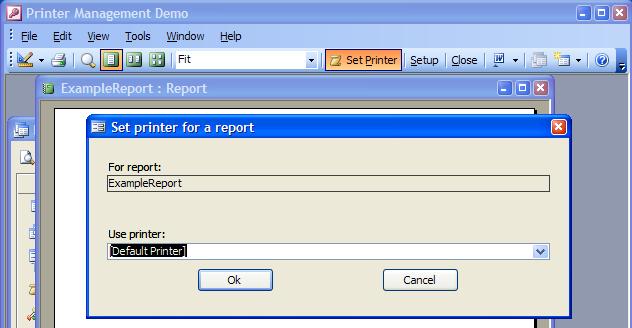
MS Access – Error 2501
Error 2501 which states:
The | action was canceled. You used a method of the DoCmd object to carry out an action in Visual Basic, but then clicked Cancel in a dialog box. For example, you used the Close method to close a changed form, then clicked Cancel in the dialog box that asks if you want to save the changes you made to the form.
is a very illusive error. It can mean a number of things which make it that more difficult to properly troubleshoot.
This said at one of my client’s, and after much troubleshooting of the database code, it was determined that the issue did not lie with the database per se, but rather with the permission that the user had on the assigned default printer. The fact that the user did not sufficient privileges to use the assigned default printer caused access to not be able to preview, little alone print, the document and instead generated the Error 2501.
So next time you get and Error 2501 trying to open a report that previously worked, or cannot find any problems with, consider validating the user’s privileges on their default printer.
MS Access VBA – Determine if a Form is Open
The following simple little procedure can be used to check if a given form is already open.
'---------------------------------------------------------------------------------------
' Procedure : IsFrmOpen
' Author    : CARDA Consultants Inc.
' Website   : http://www.cardaconsultants.com
' Purpose   : Determine whether a form is open or not
' Copyright : The following is release as Attribution-ShareAlike 4.0 International
'             (CC BY-SA 4.0) - https://creativecommons.org/licenses/by-sa/4.0/
'
' Input Variables:
' ~~~~~~~~~~~~~~~~
' sFrmName  : Name of the form to check if it is open or not
'
' Usage Example:
' ~~~~~~~~~~~~~~~~
' IsFrmOpen("Form1")
'
' Revision History:
' Rev       Date(yyyy/mm/dd)        Description
' **************************************************************************************
' 1         2010-05-26              Initial Release
' 2         2018-02-10              Minor code simplification (per Søren M. Petersen)
'                                   Updated Error Handling
'                                   Updated Copyright
'---------------------------------------------------------------------------------------
Function IsFrmOpen(sFrmName As String) As Boolean
    On Error GoTo Error_Handler

    IsFrmOpen =Application.CurrentProject.AllForms(sFrmName).IsLoaded

Error_Handler_Exit:
    On Error Resume Next
    Exit Function

Error_Handler:
    MsgBox "The following error has occurred" & vbCrLf & vbCrLf & _
           "Error Number: " & Err.Number & vbCrLf & _
           "Error Source: IsFrmOpen" & vbCrLf & _
           "Error Description: " & Err.Description & _
           Switch(Erl = 0, "", Erl <> 0, vbCrLf & "Line No: " & Erl) _
           , vbOKOnly + vbCritical, "An Error has Occurred!"
    Resume Error_Handler_Exit
End Function
How To Use It
Below is a very simple routine which checks to see if form ‘frm_Contacts’ is currently open, and if it is, then we requery it. This type of code would be used if you use a pop-up form to add new records, edit data to ensure that another form reflects those changes.
If IsFrmOpen("frm_Contacts") = True Then
    Forms(frm_Contacts).Form.Requery
End If
The Problem and The Solution
The issue with the above is that the .IsLoaded property cannot distinguish between a form being opened in design mode vs. normal visualization modes (Form View, Datasheet View, Layout View, …) so it can be inexact depending on the required usage. All the .IsLoaded property checks is whether the form is Loaded, not in which view mode it is running. As such, I prefer to use a function such as the one below that only return True when the object is open to visualization, not design. Furthermore, the following is more versatile as it can handle both Forms, Queries, Reports or Tables.
'---------------------------------------------------------------------------------------
' Procedure : IsObjectOpen
' Author    : Daniel Pineault, CARDA Consultants Inc.
' Website   : http://www.cardaconsultants.com
' Purpose   : Check if an object (Form or Report) is open or not
'               .IsLoaded is not reliable since it can't distinguish design view!
' Copyright : The following is release as Attribution-ShareAlike 4.0 International
'             (CC BY-SA 4.0) - https://creativecommons.org/licenses/by-sa/4.0/
' Req'd Refs: None required
'
' Input Variables:
' ~~~~~~~~~~~~~~~~
' sObjectName : Name of the Object (Form, Query, Report or Table) to check and see
'                   if it is open
' lObjectType : Type of Object: acForm -> Forms
'                               acQuery -> Queries
'                               acReport -> Reports
'                               acTable -> Tables
'
' Usage:
' ~~~~~~
' ?IsObjectOpen("Form1", acForm)
' ?IsObjectOpen("Query1", acQuery)
' ?IsObjectOpen("Report1", acReport)
' ?IsObjectOpen("Table1", acTable)
'
' Revision History:
' Rev       Date(yyyy/mm/dd)        Description
' **************************************************************************************
' 1         2010-05-26              Initial Release
' 2         2018-10-06              Updated Copyright and Error Handling
'---------------------------------------------------------------------------------------
Public Function IsObjectOpen(ByVal sObjectName As String, _
                             lObjectType As acObjectType) As Boolean
    On Error GoTo Error_Handler

    '0=Closed, 1=Open, 2=Open and Dirty, 3=Open on a New Record
    If SysCmd(acSysCmdGetObjectState, lObjectType, sObjectName) <> 0 Then
        Select Case lObjectType
            Case acForm
                '0=Design View, 1=Form View, 2= Datasheet View, 7=Layout View
                If Forms(sObjectName).CurrentView <> 0 Then
                    IsObjectOpen = True
                End If
            Case acQuery
                If CurrentData.AllQueries(sObjectName).CurrentView <> 0 Then
                    IsObjectOpen = True
                End If
            Case acReport
                '0=Design View, 5=Print Preview, 6=Report View, 7=Layout View
                If Reports(sObjectName).CurrentView <> 0 Then
                    IsObjectOpen = True
                End If
            Case acTable
                If CurrentData.AllTables(sObjectName).CurrentView <> 0 Then
                    IsObjectOpen = True
                End If
        End Select
    End If

Error_Handler_Exit:
    On Error Resume Next
    Exit Function

Error_Handler:
    MsgBox "The following error has occurred" & vbCrLf & vbCrLf & _
           "Error Number: " & Err.Number & vbCrLf & _
           "Error Source: IsObjectOpen" & vbCrLf & _
           "Error Description: " & Err.Description & _
           Switch(Erl = 0, "", Erl <> 0, vbCrLf & "Line No: " & Erl) _
           , vbOKOnly + vbCritical, "An Error has Occurred!"
    Resume Error_Handler_Exit
End Function
MS Access VBA – Count the Number of Open Forms
The following function will return the number of currently open forms.
'---------------------------------------------------------------------------------------
' Procedure : CountOpenFrms
' Author    : CARDA Consultants Inc.
' Website   : http://www.cardaconsultants.com
' Purpose   : Returns a count of the number of loaded Forms (preview or design)
' Copyright : The following may be altered and reused as you wish so long as the
'             copyright notice is left unchanged (including Author, Website and
'             Copyright).  It may not be sold/resold or reposted on other sites.
'
' Revision History:
' Rev       Date(yyyy/mm/dd)        Description
' **************************************************************************************
' 1         2009-Oct-30                 Initial Release
'---------------------------------------------------------------------------------------
Function CountOpenFrms()
On Error GoTo Error_Handler

    CountOpenFrms = Application.Forms.Count

Exit Function

Error_Handler:
    MsgBox "MS Access has generated the following error" & vbCrLf & vbCrLf & "Error Number: " & _
    Err.Number & vbCrLf & "Error Source: CountOpenFrms" & vbCrLf & "Error Description: " & _
    Err.Description, vbCritical, "An Error has Occurred!"
    Exit Function
End Function
MS Access VBA – List Currently Open Forms
You can use the following function to retrieve a listing of all the currently open forms.
'---------------------------------------------------------------------------------------
' Procedure : ListOpenFrms
' Author    : CARDA Consultants Inc.
' Website   : http://www.cardaconsultants.com
' Purpose   : Returns a list of all the loaded forms (preview or design)
'             separated by ; (ie: Form1;Form2;Form3)
' Copyright : The following may be altered and reused as you wish so long as the
'             copyright notice is left unchanged (including Author, Website and
'             Copyright).  It may not be sold/resold or reposted on other sites.
'
' Revision History:
' Rev       Date(yyyy/mm/dd)        Description
' **************************************************************************************
' 1         2009-Oct-31                 Initial Release
'---------------------------------------------------------------------------------------
Function ListOpenFrms()
On Error GoTo Error_Handler

    Dim DbF     As Form
    Dim DbO     As Object
    Dim Frms   As Variant

    Set DbO = Application.Forms 'Collection of all the open forms

    For Each DbF In DbO    'Loop all the forms
            Frms = Frms & ";" & DbF.Name
    Next DbF

    If Len(Frms) > 0 Then
        Frms = Right(Frms, Len(Frms) - 1)   'Truncate initial ;
    End If

    ListOpenFrms = Frms

Exit Function

Error_Handler:
    MsgBox "MS Access has generated the following error" & vbCrLf & vbCrLf & "Error Number: " & _
    Err.Number & vbCrLf & "Error Source: ListOpenFrms" & vbCrLf & "Error Description: " & _
    Err.Description, vbCritical, "An Error has Occurred!"
    Exit Function
End Function
MS Access – Password Protect a Form
There are a multitude of methods to password protect a form access to users should you not wish to implement Access’ built-in User-Level Security. The following Microsoft Knowledge Base article illustrates how you can achieve exactly this.
MS Access – Limit the Number of Records Input in a Form
Have you ever wanted to limit the number of records that could be input into a table through a form? Simply input the following Form Current Event!
Private Sub Form_Current()
    Dim intMaxNumRecs as Integer

    intMaxNumRecs = 5 'Max Number of Records to Allow

    If Me.NewRecord Then
        With Me.RecordsetClone
            If .RecordCount > 0 Then
                .MoveLast:  .MoveFirst
                If .RecordCount >=  intMaxNumRecs Then
                    MsgBox "Can't add more than " &  intMaxNumRecs & " records in the demo database!"
                    .MoveLast
                    Me.Bookmark = .Bookmark
                End If
            End If
        End With
    End If
End Sub
MS Access – Color Picker
Depending on your needs, it can also be useful to have a color picker on your form. To this end check out:
MS Access – Calculator Control
Another common need for a good number of application is a simple pop-up calculator. To my surprise, MS Access still does not come with any form of a calculator. No need to worry though! There are a great number of such MS Access calculators available for free online. Below are three examples of free calculators you can simply download and drop into your database application.