Category Archives: MS Access Reports

MS Access Reports

MS Access – Report – Sequential Numbering of Records

Have you ever needed to add a sequential number to a report’s rows. Well, it is surprising easy to do!

All you need to do is add a textbox into the detail section of your report and set the control’s Control Source property to ‘=1’ and then set the Running Sum property to either ‘Over Group’ or ‘Over All’ depending on what you are trying to achieve. The properties should be as shown below.

Textbox properties to setup sequential numbering in an MS Access Report

Close and save your changes and run your report. That’s it! It is that simple.

MS Access – Listing of Database Objects (Tables, Queries, Forms, Reports, …)

It can be useful to have a listing of all the objects in the database. For instance, a listing of all the table or queries… This can easily be achieved using a query which uses as its source a hidden system table named ‘MSysObjects’.

The basic query SQL statment is as follows:

SELECT MsysObjects.Name AS [List Of Tables]
FROM MsysObjects
WHERE (((MsysObjects.Name Not Like "~*") And (MsysObjects.Name Not Like "MSys*")) 
	AND (MsysObjects.Type=1))
ORDER BY MsysObjects.Name;

You need only change the value of the (MsysObjects.Type)=1 part of the query expression to change what listing is returned. Below are the various common values of interest that can be used to return the various objects available in Access:

Object Type Value
Tables (Local) 1
Tables (Linked using ODBC) 4
Tables (Linked) 6
Queries 5
Forms -32768
Reports -32764
Macros -32766
Modules -32761

 
Continue reading

MS Access – Creating PDFs

Please note that although below I refer to MS Access, most of these programs work within any application since they install a virtual printer that can be used to print from any program (MS Office and beyond).


MS Access 2003 (or earlier)

I will review 2 techniques for producing PDFs of Access Reports

The first, and the one I am most familiar with, is to install a PDF virtual printer. There are numerous PDF creation software programs on the market and depending on your exact need some are more appropriate than others. This said, for general use, the following 3 programs work well and are free.

CuteWriter – Works well

pdfcreator – Works well

pdf995 – Works well but you get a popup every time you use it. You can buy and unlocked version for 10$ (without the popup).

PDFConverter – I was sadly disappointed with this application.  For simple text documents it did its’ job, but getting into charts, certificates and more complex documents it failed miserably.

Nitro Reader – Simply astounding!  A great, free tool.  Reader and PDF Writer all in one.  If you do not need the ability to automate your PDF application, this is a great choice!  It offers a multitude of settings, security, …  Truly a beautiful application.

Then you can simply print to the PDF printer to convert any document (Word, Excel, Access, etc.) into a PDF. To learn how-to control your printers from code take a look at VBA Change Printer code from Albert D. Kallal’s website (near the very top of the page).

As I mentioned before, the programs listed above are for basic use. If you need to implement security and/or modify PDFs then I would recommend you get a professional PDF software. There is no denying that Acrobat is very good at what it does.

The second method is to utilize Stephen Lebans Report to PDF. The benefit to this solution is that you do not need to install a printer driver. So you can easily distribute this solution without requiring the end-user to perform any installation which they may not have the rights to do in the first place. Furthermore, since Stephen has distributed it in an ‘open source’ format, one can easily customize it as required by their unique needs.

For more information, take a look at Creating PDF files from within Microsoft Access from Tony Toews’ website.


For Access 2007

Microsoft finally saw that there was a need for PDF generation and developed an add-in, “2007 Microsoft Office Add-in: Microsoft Save as PDF or XPS”, for the entire Office Suite. So you can now simply download it, install it and print to it like a normal printer. You can download the add-in at:

https://web.archive.org/web/20061022031619/http://www.microsoft.com/downloads/details.aspx?familyid=4D951911-3E7E-4AE6-B059-A2E79ED87041&displaylang=en

MS Access VBA – Check if a Report is Open

The following simple little procedure can be used to check if a given report is already open.

'---------------------------------------------------------------------------------------
' Procedure : IsRptOpen
' Author    : CARDA Consultants Inc.
' Website   : http://www.cardaconsultants.com
' Purpose   : Determine whether a report is open or not
' Copyright : The following may be altered and reused as you wish so long as the
'             copyright notice is left unchanged (including Author, Website and
'             Copyright).  It may not be sold/resold or reposted on other sites (links
'             back to this site are allowed).
'
' Input Variables:
' ~~~~~~~~~~~~~~~~
' sRptName  : Name of the report to check if it is open or not
'
' Usage Example:
' ~~~~~~~~~~~~~~~~
' IsRptOpen("Report1")
'
' Revision History:
' Rev       Date(yyyy/mm/dd)        Description
' **************************************************************************************
' 1         2010-May-26                 Initial Release
'---------------------------------------------------------------------------------------
Function IsRptOpen(sRptName As String) As Boolean
On Error GoTo Error_Handler
   
    If Application.CurrentProject.AllReports(sRptName).IsLoaded = True Then
        IsRptOpen = True
    Else
        IsRptOpen = False
    End If
   
Error_Handler_Exit:
    On Error Resume Next
    Exit Function

Error_Handler:
    MsgBox "MS Access has generated the following error" & vbCrLf & vbCrLf & "Error Number: " & _
    Err.Number & vbCrLf & "Error Source: IsRptOpen" & vbCrLf & "Error Description: " & _
    Err.Description, vbCritical, "An Error has Occurred!"
    Resume Error_Handler_Exit
End Function

MS Access VBA – Determine if a Report Exists

The following procedure can be used to determine if a specified report exists in the current database.

'---------------------------------------------------------------------------------------
' Procedure : DoesRptExist
' Author    : CARDA Consultants Inc.
' Website   : http://www.cardaconsultants.com
' Purpose   : Determine if the specified report exists or not in the current database
' Copyright : The following may be altered and reused as you wish so long as the
'             copyright notice is left unchanged (including Author, Website and
'             Copyright).  It may not be sold/resold or reposted on other sites (links
'             back to this site are allowed).
'
' Input Variables:
' ~~~~~~~~~~~~~~~~
' sReportName : Name of the report to check the existence of
'
' Usage Example:
' ~~~~~~~~~~~~~~~~
' DoesRptExist("Report1")
'
' Revision History:
' Rev       Date(yyyy/mm/dd)        Description
' **************************************************************************************
' 1         2010-Feb-02             Initial Release
'---------------------------------------------------------------------------------------
Function DoesRptExist(sReportName As String) As Boolean
   Dim rpt  As Object
  
On Error GoTo Error_Handler
   'Initialize our variable
   DoesRptExist = False
  
   Set rpt = CurrentProject.AllReports(sReportName)
  
   DoesRptExist = True  'If we made it to here without triggering an error
                        'the report exists

Error_Handler_Exit:
   On Error Resume Next
   Set rpt = Nothing
   Exit Function

Error_Handler:
   If Err.Number = 2467 Then
      'If we are here it is because the report could not be found
   Else
      MsgBox "MS Access has generated the following error" & vbCrLf & vbCrLf & "Error Number: " & _
      Err.Number & vbCrLf & "Error Source: DoesRptExist" & vbCrLf & "Error Description: " & _
      Err.Description, vbCritical, "An Error has Occurred!"
   End If
   Resume Error_Handler_Exit
End Function

MS Access VBA – Count the Number of Open Reports

'---------------------------------------------------------------------------------------
' Procedure : CountOpenRpts
' Author    : CARDA Consultants Inc.
' Website   : http://www.cardaconsultants.com
' Purpose   : Returns a count of the number of loaded reports (preview or design)
' Copyright : The following may be altered and reused as you wish so long as the
'             copyright notice is left unchanged (including Author, Website and
'             Copyright).  It may not be sold/resold or reposted on other sites.
'
' Revision History:
' Rev       Date(yyyy/mm/dd)        Description
' **************************************************************************************
' 1         2009-Oct-30                 Initial Release
' 2         2009-Oct-31                 Switched from AllReports to Reports collection
'---------------------------------------------------------------------------------------
Function CountOpenRpts()
On Error GoTo Error_Handler

    CountOpenRpts = Application.Reports.Count

Exit Function

Error_Handler:
    MsgBox "MS Access has generated the following error" & vbCrLf & vbCrLf & "Error Number: " & _
    Err.Number & vbCrLf & "Error Source: CountOpenRpts" & vbCrLf & "Error Description: " & _
    Err.Description, vbCritical, "An Error has Occurred!"
    Exit Function
End Function

MS Access VBA – List Currently Open Reports

'---------------------------------------------------------------------------------------
' Procedure : ListOpenRpts
' Author    : CARDA Consultants Inc.
' Website   : http://www.cardaconsultants.com
' Purpose   : Returns a list of all the loaded reports (preview or design)
'             separated by ; (ie: Report1;Report2;Report3)
' Copyright : The following may be altered and reused as you wish so long as the
'             copyright notice is left unchanged (including Author, Website and
'             Copyright).  It may not be sold/resold or reposted on other sites.
'
' Revision History:
' Rev       Date(yyyy/mm/dd)        Description
' **************************************************************************************
' 1         2009-Oct-30                 Initial Release
' 2         2009-Oct-31                 Switched from AllReports to Reports collection
'---------------------------------------------------------------------------------------
Function ListOpenRpts()
On Error GoTo Error_Handler

    Dim DbR     As Report
    Dim DbO     As Object
    Dim Rpts    As Variant
   
    Set DbO = Application.Reports
   
    For Each DbR In DbO    'Loop all the reports
            Rpts = Rpts & ";" & DbR.Name
    Next DbR
   
    If Len(Rpts) > 0 Then
        Rpts = Right(Rpts, Len(Rpts) - 1)   'Truncate initial ;
    End If
   
    ListOpenRpts = Rpts

Exit Function

Error_Handler:
    MsgBox "MS Access has generated the following error" & vbCrLf & vbCrLf & "Error Number: " & _
    Err.Number & vbCrLf & "Error Source: ListOpenRpts" & vbCrLf & "Error Description: " & _
    Err.Description, vbCritical, "An Error has Occurred!"
    Exit Function
End Function

MS Access VBA – List the Reports within a Database

'---------------------------------------------------------------------------------------
' Procedure : ListDbRpts
' Author    : CARDA Consultants Inc.
' Website   : http://www.cardaconsultants.com
' Purpose   : Returns a ';' separated string containing the names of all the reports
'             within the database (use Split() to convert the string to an array)
' Copyright : The following may be altered and reused as you wish so long as the
'             copyright notice is left unchanged (including Author, Website and
'             Copyright).  It may not be sold/resold or reposted on other sites (links
'             back to this site are allowed).
'
' Revision History:
' Rev       Date(yyyy/mm/dd)        Description
' **************************************************************************************
' 1         2007-Nov                 Initial Release
'---------------------------------------------------------------------------------------
Function ListDbRpts() As String
On Error GoTo Error_Handler

    Dim DbO     As AccessObject
    Dim DbP     As Object
    Dim Rpts    As String
   
    Set DbP = Application.CurrentProject
   
    For Each DbO In DbP.AllReports
        Rpts = Rpts & ";" & DbO.Name
    Next DbO
    Rpts = Right(Rpts, Len(Rpts) - 1) 'Truncate initial ;
   
    ListDbRpts = Rpts
   
Exit Function

Error_Handler:
    MsgBox "MS Access has generated the following error" & vbCrLf & vbCrLf & "Error Number: " & _
    Err.Number & vbCrLf & "Error Source: ListDbRpts" & vbCrLf & "Error Description: " & _
    Err.Description, vbCritical, "An Error has Occurred!"
    Exit Function
End Function

MS Access – Select a Printer

Open the Print Dialog

If all you want is to open the print dialog using code then the following tidbit of code is all you need.

docmd.RunCommand acCmdPrint

Be sure to trap error number 2501 in case the user decides to cancel the action.

Program Which Printer Is Used Via VBA

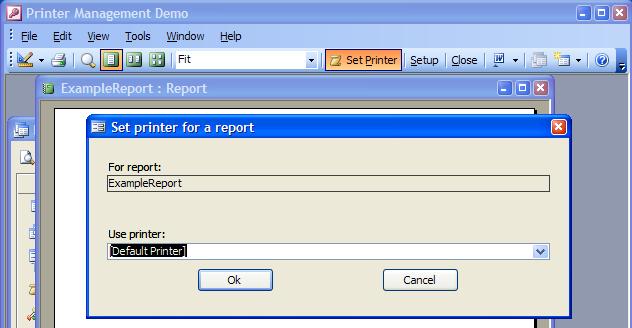
On the other hand, if you are looking to hard code which printer is used to print a document then the following is addressed to you.

The following information came from Albert D. Kallal (Access MVP)

In access 2002 and later, there is a built in printer object, and it lets you switch the printer with ease.

You can use:

Set Application.Printer = Application.Printers("HP LaserJet Series II")

So, to save/switch, you can use:

Dim strDefaultPrinter  as string

' get the currently defined default printer
strDefaultPrinter = Application.Printer.DeviceName

' switch to the printer of your choice
Set Application.Printer = Application.Printers("HP LaserJet Series II")

' do whatever....print reports

' Switch the application printer back to the original
Set Application.Printer = Application.Printers(strDefaultPrinter)

If you are using a earlier versions, then you can use my lightweight printer switch code here:

So, I do often build a form that displays a list of installed printers, and allow the user to select a printer. The above code example has such a form, but that old example is REALLY only of use for pre-A2002 applications.

So, for special forms, or things like invoice printer, I sill do NOT save which printer with the report (you *can* save the printer in ms-access, but the feature is not much use for users since if they install, or purchase a new printer..then the name changes..and your application will complain). So, while we do switch printers in code..we STILL avoid saving the particular printer to a given report. So, we always still set reports to use the default printer.

Since the margins, and portrait/landscape are saved with the report, then generally, just switching printers should do the trick if we kept the margins fairly large in the reports.”

Allen Browne also has a good utility for this purpose. More details can be found at:

MS Access – Error 2501

Error 2501 which states:

The | action was canceled. You used a method of the DoCmd object to carry out an action in Visual Basic, but then clicked Cancel in a dialog box. For example, you used the Close method to close a changed form, then clicked Cancel in the dialog box that asks if you want to save the changes you made to the form.

is a very illusive error. It can mean a number of things which make it that more difficult to properly troubleshoot.

This said at one of my client’s, and after much troubleshooting of the database code, it was determined that the issue did not lie with the database per se, but rather with the permission that the user had on the assigned default printer. The fact that the user did not sufficient privileges to use the assigned default printer caused access to not be able to preview, little alone print, the document and instead generated the Error 2501.

So next time you get and Error 2501 trying to open a report that previously worked, or cannot find any problems with, consider validating the user’s privileges on their default printer.