Category Archives: MS Access General Information

Setting Up an MS Access Database

One of the most important questions we see in the forums is regarding How to setup an Microsoft Access multi-user production database. So, today, I thought I’d take a stab at properly covering the subject from A to Z, and everything in between.

In the following article I will discuss

Continue reading

Export\Salvage Your AWA Data

With Microsoft’s recent announcement of them pulling the plug on Acess Web Apps (AWAs) (this is NO way impacts the future of standard MS Access Desktop databases), see:

http://www.devhut.net/2017/03/27/steer-clear-of-access-web-applications-awa/

the question has become about how one can salvage the data from an AWA.  What means can we employ to export the tables so we don’t loose all our data.

Thankfully, George Hepworth has put together a very valuable tutorial on the subject:

Get Your Data From Your Expiring Access Web App

In his article, George presents 3 different possible ways to extract your Acess Web Apps (AWA) data:

  • Convert To Local Tables in Access
  • Create SharePoint Lists from your SQL Azure Tables
  • Deploy a dacpac (for SQL Server 2008 R2+)

So if you are looking for information on how to extract your raw data from your AWA, please take a look at his article!

Great Access Tools – Find and Replace

Important Update
Since the closure of UtterAccess’s site, this download is no longer available! Furthermore, since UtterAccess’ downloads where behind a login, we cannot utilize the Wayback Archive to retrieve copies!

Ever wanted to change a field name but have no clue what objects use it?

Historically developers turned towards tools like:

  • Speed Ferret (last updated for Access 2002 and I don’t think the company is issuing licenses anymore)
  • Rick Fisher’s Find and Replace (as noted below by John Colby, apparently Rick Fisher passed away, another great loss to the Access community!)

So what are our options now!?

Thankfully, Brent Spaulding (aka datAdrenaline) created the Search for Text utility which can be found in the UtterAccess.com Code Archive forum (along with many other little gems!).

Continue reading

Great Access Tools – Enhanced Message Box

Anyone that’s ever developed any computer solution knows the importance of providing messages to the end-users.  Now, Microsoft provides the MsgBox, but to say it is primitive is an understatement.  It hasn’t progressed in any way since its inception!  Want to highlight your text, bold, italic, … simply NOT possible.

No worries!  Once again, a developer saw a need and he, Renaud Bompuis, decided to fill it and then provided the solution to the www community free of charge!  The solution is the Enhanced Message Box.

And what an exceptional solution it is!!!

What can it do?

What can’t it do should be the question!

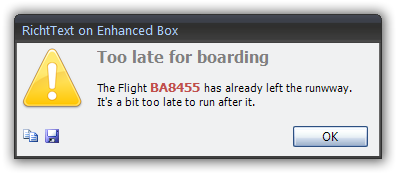
  • First and foremost, it can accept HTML formatting so you can create truly beautiful messages
  • It has options to copy the message (great for reporting what errors a user receives)
  • It has an option to save the message
  • See the developers website for a full listing of features

How much does it cost?

Nothing!  No strings attached.  Simply download the zip file and copy the form and module into your database and start using it.  The zip file contains an unlocked accdb file with everything you need!

Renaud, provides numerous code examples on his site and it truly isn’t very complicated to use in the first place.  It has similar syntax to Microsoft’s website only it is much better!

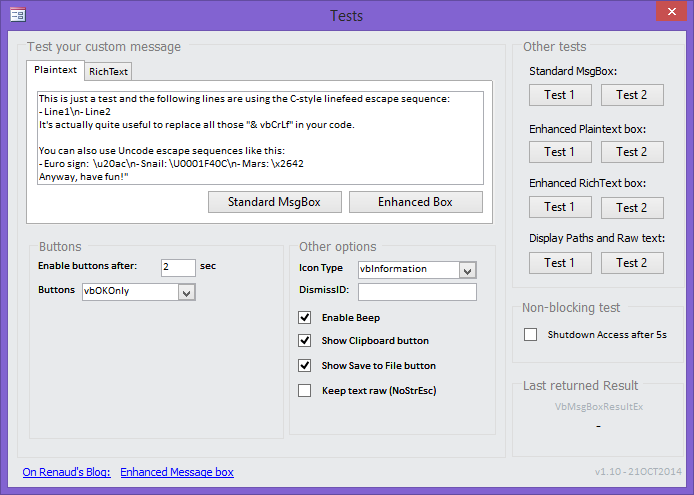
Renaud, even provides a form to test things out so you can easily see it in action and compare the result to the standard message box (as if there was any comparison).

You can also easily update your existing databases to use the Enhanced Message Box by simply performing a Find and Replace.  That’s as hard as it gets.  So check it out for yourself, you have absolutely nothing to loose!

All I can say is Thank you Renaud for this exceptional tool and thank you for sharing with us all!  It is one more way of taking any database to the next level.

Note
I have no affiliation with above mentioned website, developer, product, company … The above is an independent, unsolicited post based on my personal opinion.

Great Access Tools – Access Shortcut (right-click) Tool

As developers our primary job is to facilitate our user’s interaction with the data. One way to provide easy access to functionalities (sorting, filtering, …) is by creating Right-Click Context Menus. Sadly, Microsoft has, in recent years, made this even more complicated than it already was and it is quite undertaking to say the least!

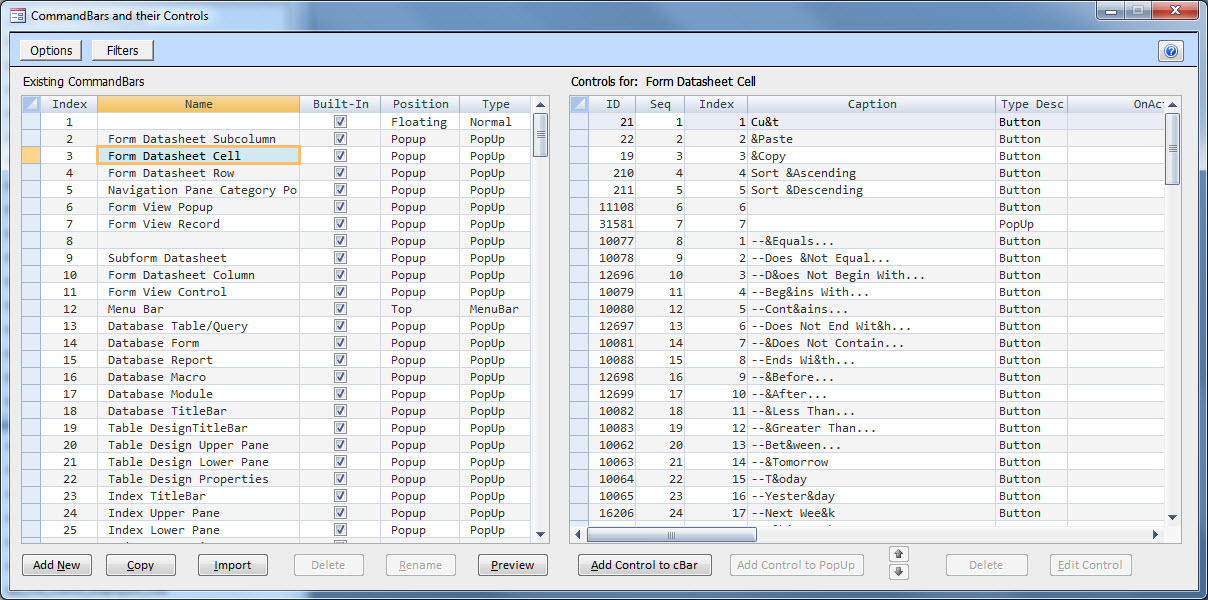
Thankfully, Dale Fye, fellow MS Access MVP, has created a really nice add-in, the Access Shortcut (right-click) Tool, to completely revolutionize the task of creating such context menus.

Through the use of his add-in, you simply fill in a couple menus to make selections and apply settings and the next thing you know you have fully functioning MS Access right-click context menus in your database!

Continue reading

Great Access Tools – Access Crash Reporter

I’m starting a series of posts to promote some great tools to be aware of as an Access developer

Today, I’d like to introduce you to TheSmileyCoder’s Access Crash Reporter.

Any developer can attest that errors will occur and quite often users do not jot down the details of exactly what happened exactly thus making it very difficult to troubleshoot at times.  The Access Crash Reporter is a tool through which you can collect error data so you don’t have to solely rely on the users account of the problem.

This free tool gathers a tremendous amount of information:

  • Error Source
    • Object
    • Control
    • Parent Object (if applicable)
  • User
  • OS Information
  • Access Information
  • and so much more!

about errors when they occur and can, amongst other things:

  • Log errors to a tables
  • Generate E-mails to notify the contact of your choosing when error occur supplying them with all the details, a Screenshot of the application and of the object involved

TheSmileyCoder has a 7 minute video on his site, or view it directly on YouTube by using the following link: Crash Report Tool – Demo, Setup and Instructions which briefly demonstrates the tool and the resulting error collection, e-mail, …

If you don’t have an error handling system yet, consider taking this one for a test drive. If you are new to the subject of Error Handling, you may also like to review my article MS Access – VBA – Error Handling.

If you do have a error handling system, consider taking this one for a test drive.  It truly adds some nice functionalities and makes error reporting much more user-friendly.

Note
I have no affiliation with above mentioned website, developer, product, company … The above is an independent, unsolicited post based on my personal opinion.

Update 2024-05-04: Since TheSmileyCoder’s site no longer exists, I have updated the links to point to an archived version of his site.

Convert Your Access Database Into An Exe

Over the years, I’ve seen the same question come up time and time again:

How can I convert my MS Access database into an exe so I can sell it

Further discussion typically brings up the notion that they wish it to run as it’s stand alone program and not require the end-user to have MS Access installed (like other programs found on the Net).

Now, in a general sense, this is simply not possible.  If this was the original intent of your application, one should have used one of many alternative programming languages which allow for compiling into an exe.

That said, long, long ago, did come across a website in which instructions were provided to package everything up and indeed convert it into an exe.  Let me be perfectly clear, whether or not it worked back then, or continues to work today, it would be illegal as one does not have copyright to repackage the Access application in this manner.  This would be a clear violation of MS’ copyright!

So what can be done then?  No matter what database format you use mdb, mde, accdb, accde, accdr, … the end-user must have Microsoft Access (full version or runtime) installed to run it.  So while you cannot in fact convert your database itself into an exe, you can package it, as an exe, to perform the installation, but the final format, once installed, will remain an MS Access database file (mdb, mde, accdb, accdb, accde, accdr, … ).

If you are wanting to go down the route of creating an installer for your database, then take a look at MS Access Package Solution Wizard is Dead, Now What? as it lists a few installers you could look at.  By packaging the database, you will indeed create an exe that you can distribute/sell and it, in turn, can install the free Microsoft Access runtime (you should check to make sure they don’t already have the full version installed already before blindly installing the runtime), create the necessary folder structure(s), install other dependencies, perform registry operations (create a Trusted Location for the FE for instance) and lastly install your database.

Lastly, if you are at the point of looking to package your database application be sure to properly secure it prior to doing so.  To do so please read Securing Your MS Access Database Front-End.


Securing Your MS Access Database Front-End

In this post I’d like to discuss what steps you can take to try and secure, as best you can, your MS Access Front-End application.

Password Protect your FE

As I pointed out in my post entitled Why Ms Access Isn’t A Secure Database – Part 2, a MS Access Front-End is not secure and leaves sensitive information completely open to hacking.  As such, like your back-end (BE), you should always Encrypt with Password your front-end (FE).  This will, in the very least, stop prying eyes from being able to harvest BE passwords allowing anyone to have complete reign on your raw data.

Also, be sure to use a different password for the FE than used with the BE.

Distribute a Compiled FE to your End-Users

Another critical step is to always distribute a compiled version (mde/accde) of your FE to your end-users.  By converting your mdb/accdb into an mde/accde, you lock down certain type of objects within your database.  Users can not open Forms or Reports in design view, nor can the view any of the VBA code.  So in essence by distributing a compile version you minimize any opportunity to mess around with the database itself.

Now an mde/accde surprisingly does not lock down tables, queries or macros.

Also note that since all VBA code is locked down and unviewable, any unhandled errors will cause a fatal application crash, hence the crucial importance of bulletproof error handling throughout all of your VBA code.

Hide the Navigation Pane

As noted in the previous section, an mde/accde surprisingly does not lock down tables, queries or macros so it becomes critical to take the necessary steps to do as much as you can to limit users abilities to get into aspects of the databases they shouldn’t be in.  As such, by simply hiding the Navigation Pane, you eliminate your user’s ability to access these database objects.

Hide individual Database Objects

Of lesser importance, if you’ve taken the necessary steps to hide the Nav Pane altogether, changing the individual object Hidden attribute to True (so as to make it a hidden object) can keep most users from viewing objects in the first place unless they purposely go and changes their Navigation Display Options to Show Hidden Objects.

Use a Custom Ribbon

By completely hiding the standard Ribbon and using your own Ribbon, you can control which commands your users have access to and thus minimize any trouble they can get into.

Disable the Shift Bypass

Even if you prepare your database and hide this and that, you must disable the Shift Bypass property so as to close the back door which enables people to get around all of the above steps you’ve taken to harden your application.

Disable Special Keys

Change your database Use Access Special Keys property.

Create an AutoKeys Macro

By creating an AutoKeys macro, you can disable certain built-in key sequences, such as:

Ctrl+G -> Opens VBE
Ctrl+Break
F11 -> Shows/Hides Navigation Pane

In an ideal world we’d also include the following key combinations, but for whatever reason Microsoft does not allow the use of Alt in AutoKeys, go figure?!

Atl+F11 -> Opens VBE
Alt+F1

This step is somewhat redundant since we disabled Access’ Special Keys in the previous step, but I prefer to do both.  It provides an extra layer of security in case someone manages to change the database property itself.

Create an AutoExec Macro

I personally like to use an AutoExec macro which calls my startup procedure.  Typically, as part of my startup procedure I call a procedure that simply sets/resets the various properties we’ve been discussing (Shift Bypass, Hide Nav Pane, Check that we’re running an compiled copy, …)

Lockdown Where Your Database Can Run

If you are lucky enough that you are running your db on say a CITRIX server, you can easily add code, as part of your startup mechanism, that verifies which computer is running the current application.  If it doesn’t match up with the computer/server name it should be running on, simply close the application.

Note: I actually send an e-mail to the db admin when this occurs with certain information (PC name, Username, IP address, Date/Time, …).

Lockdown Which User Can Run Your Database

Another easy process to implement is to have a table in your database that lists all the windows usernames that are allowed running the database.  At startup, retrieve the current user’s network username and then see if it is in your user table.  If it isn’t close the application.

Note: I actually send an e-mail to the db admin when this occurs with certain information (PC name, Username, IP address, Date/Time, …).

Lockdown Folder Permissions

Yes, simple folder permissions are still one of your best friends when trying to harden any application, not just MS Access databases!  By controlling who can access what, you minimize any potentials for disaster.

When it comes to Access, setting up the BE folder to have Travers permission thus allowing user access to the data but not to the folder itself stops people from nosing around and being able to copy everything and walking away with it.  Then you distribute the FE as you always do (one copy per user locally installed on their PC).

Implement Virtual Password Protected Connection (vPPC)

If you truly want to take things to the next level, you may wish to examine and implement Virtual Password Protected Connection (vPPC).  Alan Cossey was kind enough to provide me with a copy to the initial concept which you can download below since all the other download links are no longer valid.  Do note this is offered with no support whatsoever.

Download “Access - vPPC Security Toolkit” vPPCSecurityToolkit.zip – Downloaded 55839 times – 1.24 MB


As always, if you have any tips to share please feel free to leave a comment.
Why MS Access isn’t a Secure Database – Part 2

It is one things to explain how Access stores back-end passwords in plain English text in a hidden system table as I did in my article entitled Why MS Access isn’t a Secure Database, but I didn’t just want you to take my word for it. So I quickly put together what I have dubbed my BE Password Extractor.

Do note, this utility only works for Access database using Access back-ends. It will not retrieve SQL Server passwords …

Simply pick the Front-End to use to extract Back-End information about, specify the Password for the Front-End if applicable and then click on the Retrieve BE Info.  In a few split seconds, you should see a list of Back-End file(s) and their respective Password and Connection String.

Continue reading

Upgrade mdb file format to accdb?

Based upon a recent discussion between Access MVPs, I thought it could be valuable information to share with the Access community at large.  Below is the summary of our discussion on the subject.

Developers with older database which were created using the mdb file format often wonder if they should be upgrading to the newer accdb file format.

I do believe, as a general rule, the old adage “Do not fix what isn’t broken”. That being said, 2013+ no longer support the ’97 and prior versions of mdb and no one knows for how much longer Microsoft will continue to support the latter version of the mdb file format. Since the accdb file format has been around now for also a decade, it might be a good time to consider it.

So let’s ponder the question for a minute and see if there are any compelling reasons to upgrade file formats.

Continue reading