Windows ships with excess apps, ads, telemetry, and AI elements that hinder speed and privacy from day one.
Below are a few free tools, working as portable files or scripts for quick cleanup on Windows 10 or 11.
Why Bother Debloating?
Preinstalled games, streaming apps, and background trackers consume resources while cluttering your interface. Debloating, de-cluttering, decrapifying (that’s a real term!) sharpens performance, saves battery, and reduces data sharing thus helping somewhat protect some of your information through tweaks to your computer settings.
CrapFixer
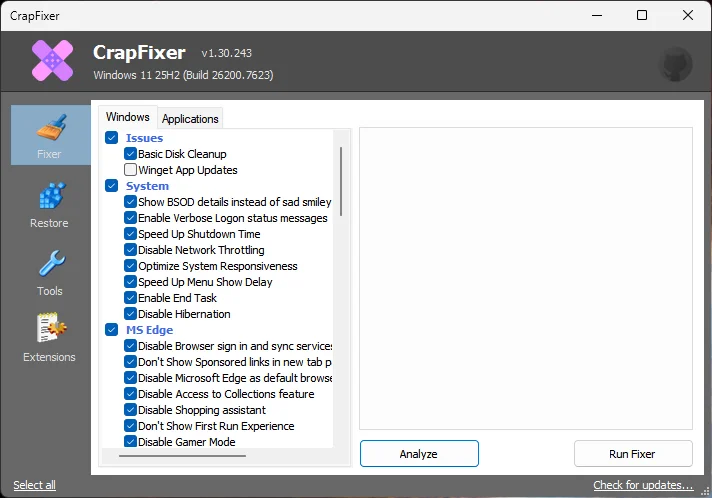
CrapFixer, which now replaces TidyOS, provides a user-friendly graphical interface with tabs to disable ads, telemetry, Copilot, and bundled apps like media players. Download the portable executable, launch it, and apply changes.
Chris Titus Tech’s Windows Utility
Chris Titus Tool runs through PowerShell to uninstall bloatware, disable services, and optimize performance using customizable profiles that update automatically. Paste a single command in an admin PowerShell window to fetch and run the latest version interactively.

Chris Titus Tech’s Windows Utility
Winaero Tweaker’s Precise Controls
Winaero Tweaker offers a portable app filled with toggles to suppress ads, customize UI, and remove unwanted features like widgets or search highlights. Extract the ZIP, run the executable, and there you can choose whether to install it as an full-blown registered application on your system or simply extract it to a folder as a portable app.
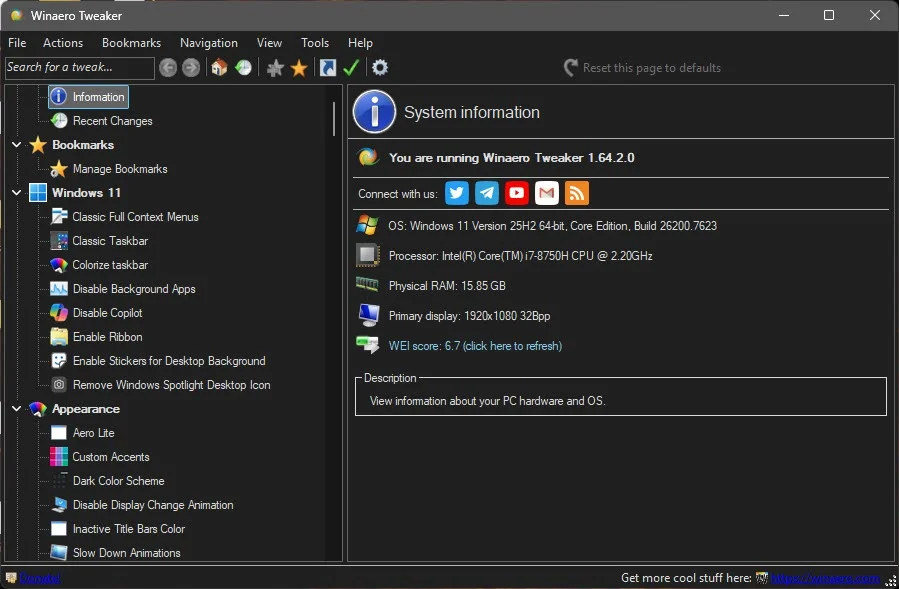
It’s unique in the sense that it allows you to make all sorts of adjustments to the look, feel, behavior of Windows without needing to add all sort of registry hacks.
RemoveWindowsAI for Modern AI Cleanup
RemoveWindowsAI targets AI features like Copilot and Recall, disabling them and blocking reinstalls via updates through a simple selection interface. Copy the script from its repo into PowerShell to launch and choose targeted removals for current Windows builds.

Winhance for Comprehensive Debloat and Optimization
Winhance targets Windows 10 (22H2+) and 11 with a searchable interface to uninstall apps, optional features, and legacy components in one go, plus extras like privacy tweaks, gaming optimizations, power plans, and WinGet app installs. Launch it portably by pasting a command from its GitHub into admin PowerShell with no traditional install needed and it sets up ongoing cleanup tasks for persistent results. That said, you do have to run an installer to get the portable version (something I just don’t understand the logic behind).
Winhance – Windows Enhancement Utility
Sparkle
Another utility I have my eye on, currently in Beta, is Sparkle. This free, open-source tool for Windows 10 and 11 that streamlines debloating, privacy hardening, performance tweaks, and system cleanup through an intuitive dashboard with sections for tweaks, utilities, cleaner, apps, and more. Users can remove bloatware like Edge and telemetry services by unchecking items (note the reverse logic), install apps via Winget, manage DNS, create restore points, and clear caches for faster operation—all reversibly with rollback options. The downside, if run through PowerShell, is it runs an installer on the PC. However, if you download from the website, you have the option of a Portable version.

Sparkle (GIT)
Sparkle (website)
O&O ShutUp10++
Not a debloater, but rather a Windows 10/11 privacy tool.
O&O ShutUp10++
In summary, tools like CrapFixer, Chris Titus WinUtil, Winaero Tweaker, RemoveWindowsAI, and Winhance empower you to reclaim control over your Windows install without spending a dime or sharing personal info. Each offers unique strengths, from visual simplicity to script-driven power, letting you mix and match for a bloat-free setup that runs faster, respects your privacy, and stays optimized against future updates. Start with one that matches your comfort level, create a restore point first, and enjoy a snappier PC tailored just for you.