When Office 2007 came out Microsoft introduced their new security measure Trusted Documents and Locations. Until a document was Trusted, the macros/VBA code would be disabled to avoid malicious code from running accidentally.
Thus, for documents with Macros, VBA code, until they are trusted in some manner you will see notifications similar to:
In Access you’ll see:

In Excel, Word, … you’ll see:
So What’s The Difference Between Trusted Documents and Locations?
The names say it all.
A Trusted Document is an entry in the registry for a specific file name. That file path and name is Trusted, no other file is trusted. If you rename that file, or move it to another folder, then the moved/renamed file is not trusted. This also means that you can rename an untrusted file to the name of a trusted file (replace it) and it will be trusted and the code will run freely.
A Trusted Location is a folder in which all the files of an application are trusted (you also have the option to trust all the sub-folders contained within as well). This also means if someone knows of a Trusted Location they can place any file there to run code freely.
App By App
Trusted Documents and Locations are application specific meaning that Access has a separate list from Excel and/or Word, …
So if you create a Trusted Location for Access databases excel files within are not trusted until you go and create the same Trusted Location in Excel. And so on…
Let Talk About The Registry
Trusted Documents and Trusted Locations are nothing more that simple entries within the registry.

Trusted Documents
If we look at Excel (the same is true for all the apps) entries are stored under:
HKEY_CURRENT_USER\SOFTWARE\Microsoft\Office\15.0\Excel\Security\Trusted Documents\TrustRecords
Trusted Locations
If we look at Excel (the same is true for all the apps) entries are stored under:
HKEY_CURRENT_USER\SOFTWARE\Microsoft\Office\15.0\Excel\Security\Trusted Locations
where each defined location has it’s own key.
The Application Version Number
Noe that the 15.0 in the registry keys above represent the version of Excel you are running (12.0 = 2007, 14.0 = 2010, 15 = 2013, 16 = 2016+), so this number can be different system to system depending on configurations and will need to be adjusted accordingly when search for the keys.
Managing Trusted Documents
Creating a Trusted Document is very straight forward, you need only click on the Enable Content button in the Security Warning message bar.
Managing Trusted Locations
Below, I’m going to present several way you can manage Trusted Locations.
Manually
As long as you have the full blown version an application and permissions to work with the Trusted Location have not been revoked by the IT department you can manage Trusted Locations by following the sequence:
File tab on the main application ribbon

Options

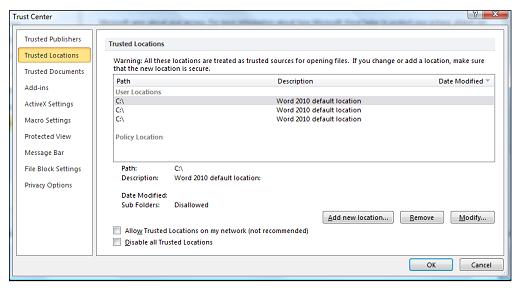
Trust Center and then Trust Center Settings…

Trusted Locations

and then use the Modify…, Add new location… or Remove buttons and simply fill-in the dialogs as required.

Using a VBScript
Below are 2 scripts that enable the automation of the creation of Trusted Locations for any application. You need only configure the variables contained in the User defined values section and then run the script. A detailed breakdown of the scripts and their usage is available in the YouTube video so I strongly urge you to view it.
Basic Script
'*******************************************************************************
' Purpose   : Setup the specified Trusted Location (TL)
'				Rememeber you need only set a Trusted Location for the Front-End
' Author    : Daniel Pineault, CARDA Consultants Inc.
' Website   : http://www.cardaconsultants.com
' Copyright : The following is release as Attribution-ShareAlike 4.0 International
'             (CC BY-SA 4.0) - https://creativecommons.org/licenses/by-sa/4.0/
'
' Revision:	  2010-06-23	Initial Release
'			  2022-09-19	Complete code rework
'						 	Updated Copyright Notice
'*******************************************************************************
Const HKEY_CLASSES_ROOT              = &H80000000
Const HKEY_CURRENT_USER 			 = &H80000001

Call CreateTrustedLocation


Sub CreateTrustedLocation()
	Dim oRegistry
	Dim sKeyName				'Registry Key Name - default is Location1, Location2, ...
	Dim sPath					'Path to set as a Trusted Location
	Dim sDescription			'Description of the Trusted Location
	Dim bAllowSubFolders		'Enable subFolders as Trusted Locations
	Dim bAllowNetworkLocations 	'Enable Network Locations as Trusted
								'	Locations
	Dim sOverWriteExistingTL	'Should this routine overwrite the entry if it already
								'	options are: Overwrite, New, Exit
	Dim bAlreadyExists			'Does the path already have an entry?
	Dim sParentKey
	Dim iLocCounter				'Counter
	Dim aChildKeys				'Array of Child Registry Keys
	Dim sChildKey				'Individual Registry Key
	Dim sValue					'Value
	Dim sNewKey					'New Key to Create
	Dim sAppName   				'Name of the application to create the Trusted Location for
								'	Access, Excel, Word


'User defined values for the script - Edit these as required
'*******************************************************************************
	'Name of the application to create the Trusted Location for Access, Excel, Word
	sAppName = "Access"
	'Name of the Trusted Location registry key, normally Location, Location1, ...
	sKeyName = "Location"
	'Path to be added as a Trusted Location - ie: c:\databases\
	sPath = "C:\Users\Daniel\Downloads\"
	'Description of the Trusted Location
	sDescription = "Downloads"
	'Should sub-folders of this Trusted Location also be trusted?
	bAllowSubFolders = True
	'Should network paths be allowed to be Trusted Locations?  Typically, No = False
	bAllowNetworkLocations = False
	'Should this routine overwrite the entry if it already exist
	sOverWriteExistingTL = "Overwrite" '"New", "Overwrite", "Exit"


'Do NOT Alter Anything Beyond This Point Unless You Know What You Are Doing!!!!!
'*******************************************************************************
'*******************************************************************************
'*******************************************************************************
	bAlreadyExists = False

	Set oRegistry = GetObject("winmgmts:\\.\root\default:StdRegProv")
	oRegistry.GetStringValue HKEY_CLASSES_ROOT, sAppName & ".Application\CurVer", "", sValue
	If IsNull(sValue) Then
		'This message box is optional, feel free to comment it out
		MsgBox "Microsoft " & sAppName & " does not appear to be installed on this computer?!  Cannot continue with the Trusted Location configuration."
	Else
		sValue = Mid(sValue, InStr(sValue, "n.") + 2)
		If sValue >= 12 Then 'Only need to define Trusted Location for Office 2007 Apps or later
			sParentKey = "Software\Microsoft\Office\" & sValue  & ".0\" & sAppName & "\Security\Trusted Locations"	'Trusted Location Reg Key

			'Allow Usage of Networked Trusted Locations.  This is NOT recommended
			If bAllowNetworkLocations = True Then
    			oRegistry.SetDWORDValue HKEY_CURRENT_USER, sParentKey, "AllowNetworkLocations", 1
			End If

			'Check and see if the Key already exists
			If KeyExists(oRegistry, sParentKey, sKeyName) Then
				If sOverWriteExistingTL = "Exit" Then Exit Sub
				If sOverWriteExistingTL = "New" Then
					sKeyName = sKeyName & GetNextKeySequenceNo(oRegistry, sParentKey, sKeyName)
				End If
				oRegistry.DeleteKey HKEY_CURRENT_USER, sParentKey & "\" & sKeyName
			End If

			'Example of reading key values
			'oRegistry.EnumKey HKEY_CURRENT_USER, sParentKey, aChildKeys
			'For Each sChildKey in aChildKeys
				'Retrieve the Desctiption
				'oRegistry.GetStringValue HKEY_CURRENT_USER, sParentKey & "\" & sChildKey, "Description", sValue
				'Retrieve the Path
				'oRegistry.GetStringValue HKEY_CURRENT_USER, sParentKey & "\" & sChildKey, "Path", sValue
			'Next

			'Actual Trusted Location Creation in the Registry
			sNewKey = sParentKey & "\" & sKeyName
			oRegistry.CreateKey HKEY_CURRENT_USER, sNewKey
			oRegistry.SetStringValue HKEY_CURRENT_USER, sNewKey, "Date", CStr(Now())
			oRegistry.SetStringValue HKEY_CURRENT_USER, sNewKey, "Description", sDescription
			oRegistry.SetStringValue HKEY_CURRENT_USER, sNewKey, "Path", sPath
			If bAllowSubFolders = True Then
				oRegistry.SetDWORDValue HKEY_CURRENT_USER, sNewKey, "AllowSubFolders", 1
			End If
		End If
	End If
End Sub

Function KeyExists(oReg, sKey, sSearchKey)
	oReg.EnumKey HKEY_CURRENT_USER, sKey, aChildKeys
	For Each sChildKey in aChildKeys
		If sChildKey = sSearchKey Then
			KeyExists = True
			Exit For
		End If
	Next
End Function

Function GetNextKeySequenceNo(oReg, sKey, sSearchKey)
	Dim lKeyCounter

	lKeyCounter = 0
	oReg.EnumKey HKEY_CURRENT_USER, sKey, aChildKeys
	For Each sChildKey in aChildKeys
		If Left(sChildKey, Len(sSearchKey)) = sSearchKey AND Len(sChildKey) > Len(sSearchKey) Then
			If CInt(Mid(sChildKey, Len(sSearchKey) + 1)) > lKeyCounter Then
				lKeyCounter = CInt(Mid(sChildKey, Len(sSearchKey) + 1))
			End If
		End If
	Next
	GetNextKeySequenceNo = lKeyCounter + 1
End Function
Self-Aware Script
'*******************************************************************************
' Purpose   : Setup the specified Trusted Location (TL) for the folder/path in
'			  which this vbs file resides.
'			  	Rememeber you need only set a Trusted Location for the Front-End
' Author    : Daniel Pineault, CARDA Consultants Inc.
' Website   : http://www.cardaconsultants.com
' Copyright : The following is release as Attribution-ShareAlike 4.0 International
'             (CC BY-SA 4.0) - https://creativecommons.org/licenses/by-sa/4.0/
'
' Revision:	  2010-06-23	Initial Release
'			  2022-09-19	Complete code rework
'						 	Updated Copyright Notice
'*******************************************************************************
Const HKEY_CLASSES_ROOT              = &H80000000
Const HKEY_CURRENT_USER 			 = &H80000001

Call CreateTrustedLocation


Sub CreateTrustedLocation()
	Dim oRegistry
	Dim sKeyName				'Registry Key Name - default is Location1, Location2, ...
	Dim sPath					'Path to set as a Trusted Location
	Dim sDescription			'Description of the Trusted Location
	Dim bAllowSubFolders		'Enable subFolders as Trusted Locations
	Dim bAllowNetworkLocations 	'Enable Network Locations as Trusted
								'	Locations
	Dim sOverWriteExistingTL	'Should this routine overwrite the entry if it already
								'	options are: Overwrite, New, Exit
	Dim bAlreadyExists			'Does the path already have an entry?
	Dim sParentKey
	Dim iLocCounter				'Counter
	Dim aChildKeys				'Array of Child Registry Keys
	Dim sChildKey				'Individual Registry Key
	Dim sValue					'Value
	Dim sNewKey					'New Key to Create
	Dim sAppName   				'Name of the application to create the Trusted Location for
								'	Access, Excel, Word


'User defined values for the script - Edit these as required
'*******************************************************************************
	'Name of the application to create the Trusted Location for Access, Excel, Word
	sAppName = "Access"
	'Name of the Trusted Location registry key, normally Location, Location1, ...
	sKeyName = "Location"
	'Description of the Trusted Location
	sDescription = "Self-aware"
	'Should sub-folders of this Trusted Location also be trusted?
	bAllowSubFolders = False
	'Should network paths be allowed to be Trusted Locations?  Typically, No = False
	bAllowNetworkLocations = False
	'Should this routine overwrite the entry if it already exist
	sOverWriteExistingTL = "Overwrite" '"New", "Overwrite", "Exit"


'Do NOT Alter Anything Beyond This Point Unless You Know What You Are Doing!!!!!
'*******************************************************************************
'*******************************************************************************
'*******************************************************************************
	bAlreadyExists = False
	'Path to be added as a Trusted Location - uses the current vbs path
	sPath = Left(WScript.ScriptFullName,(Len(WScript.ScriptFullName) _
		     - (Len(WScript.ScriptName) + 1)))

	Set oRegistry = GetObject("winmgmts:\\.\root\default:StdRegProv")
	oRegistry.GetStringValue HKEY_CLASSES_ROOT, sAppName & ".Application\CurVer", "", sValue
	If IsNull(sValue) Then
		MsgBox "Microsoft " & sAppName & " does not appear to be installed on this computer?!  Cannot continue with the Trusted Location configuration."
	Else
		sValue = Mid(sValue, InStr(sValue, "n.") + 2)
		If sValue >= 12 Then 'Only need to define Trusted Location for Office 2007 Apps or later
			sParentKey = "Software\Microsoft\Office\" & sValue  & ".0\" & sAppName & "\Security\Trusted Locations"	'Trusted Location Reg Key

			'Allow Usage of Networked Trusted Locations.  This is NOT recommended
			If bAllowNetworkLocations = True Then
    			oRegistry.SetDWORDValue HKEY_CURRENT_USER, sParentKey, "AllowNetworkLocations", 1
			End If

			'Check and see if the Key already exists
			If KeyExists(oRegistry, sParentKey, sKeyName) Then
				If sOverWriteExistingTL = "Exit" Then Exit Sub
				If sOverWriteExistingTL = "New" Then
					sKeyName = sKeyName & GetNextKeySequenceNo(oRegistry, sParentKey, sKeyName)
				End If
				oRegistry.DeleteKey HKEY_CURRENT_USER, sParentKey & "\" & sKeyName
			End IF

			'Example of reading key values
			'oRegistry.EnumKey HKEY_CURRENT_USER, sParentKey, aChildKeys
			'For Each sChildKey in aChildKeys
				'Retrieve the Desctiption
				'oRegistry.GetStringValue HKEY_CURRENT_USER, sParentKey & "\" & sChildKey, "Description", sValue
				'Retrieve the Path
				'oRegistry.GetStringValue HKEY_CURRENT_USER, sParentKey & "\" & sChildKey, "Path", sValue
			'Next

			'Actual Trusted Location Creation in the Registry
			sNewKey = sParentKey & "\" & sKeyName
			oRegistry.CreateKey HKEY_CURRENT_USER, sNewKey
			oRegistry.SetStringValue HKEY_CURRENT_USER, sNewKey, "Date", CStr(Now())
			oRegistry.SetStringValue HKEY_CURRENT_USER, sNewKey, "Description", sDescription
			oRegistry.SetStringValue HKEY_CURRENT_USER, sNewKey, "Path", sPath
			If bAllowSubFolders = True Then
				oRegistry.SetDWORDValue HKEY_CURRENT_USER, sNewKey, "AllowSubFolders", 1
			End If
		End If
	End If
End Sub

Function KeyExists(oReg, sKey, sSearchKey)
	oReg.EnumKey HKEY_CURRENT_USER, sKey, aChildKeys
	For Each sChildKey in aChildKeys
		If sChildKey = sSearchKey Then
			KeyExists = True
			Exit For
		End If
	Next
End Function

Function GetNextKeySequenceNo(oReg, sKey, sSearchKey)
	Dim lKeyCounter

	lKeyCounter = 0
	oReg.EnumKey HKEY_CURRENT_USER, sKey, aChildKeys
	For Each sChildKey in aChildKeys
		If Left(sChildKey, Len(sSearchKey)) = sSearchKey AND Len(sChildKey) > Len(sSearchKey) Then
			If CInt(Mid(sChildKey, Len(sSearchKey) + 1)) > lKeyCounter Then
				lKeyCounter = CInt(Mid(sChildKey, Len(sSearchKey) + 1))
			End If
		End If
	Next
	GetNextKeySequenceNo = lKeyCounter + 1
End Function
Using Gunter Avenius’s AddPath EXE
Another for automating the creation of Trusted Locations is to use Gunter Avenius’ AppPath EXE. As long as you have the necessary privileges to download and run exe file this is a great option to consider.

Be sure to download the proper exe for your application and version
If run on it’s own, it will create a Trusted Location for the folder in which the exe is placed and you will receive a pop-up message (in German) once the operation is completed.
However, if you review his website the exe offer several command-line switches:
/Path
/noSubFolder
/s
/LangEN
/AllowNetwork:1
enabling you to automate the exe even more via Command Prompt, Bat file and the likes. Thus, you can do things like:
Add a Specific Folder
addpath2016.exe /path C:\Users\Daniel\Documents\
Add a Specific Folder Silently (No Confirmation Popup)
addpath2016.exe /path C:\Users\Daniel\Documents\ /s
Add a Specific Folder Silently (No Confirmation Popup) Without SubFolders
addpath2016.exe /path C:\Users\Daniel\Documents\ /s /nosubfolder

Excellent Article, DP! This will con in handy when I am on a network that allows Registry editing. Right now, both networks have lockdowns on the users…
Daniel, I’m a big fan of your work and in awe of your ability and generosity. I’m in the process of implementing your self-aware script for generating a trusted location. I have a problem with the following line:
sPath = Left(WScript.ScriptFullName, (Len(WScript.ScriptFullName) _
– (Len(WScript.ScriptName) + 1)))
I get the error message compile error ‘Variable not defined’ & WScript is highlighted. I don’t understand enough to fix? If you can assist it would be much appreciated. I’m running 64 bit Access on a Windows 11 PC if that’s of any use. Cheers
How are you trying to implement it exactly?
This is meant to be run as a standalone VBScript in which case WScript is available. If you’re trying to do this in VBA, you are going to face issues, will need to define a WScript object and somehow enable the content so the VBA code runs.
Daniel, i now understand. This is not a vba code module!. My aim is to automatically add the folder where the database resides to the trusted folders list if upon startup of the database an ‘untrusted’ folder is detected. If that makes sense. Appreciate the prompt response & any suggestons.
But that’s the whole point. Using VBA to unlock locked VBA requires users first enabling the content. So sort of doesn’t make sense. That’s why I use VBScript. It is part of my deployment script that my users have a shortcut to. The launch this instead of the database itself and it ensures the TL is created beforehand and then it launches the database.
If you use any installers, then you can also use the VBScript as part of the installer routine.
Daniel, understood!. I have never used VBscript. For fear of being a nusance, could you please explain how I’d run the script. Appreciate it.
Create a text file, copy/paste the code into it, save it giving it an extension of vbs. To run it, you simply double-click on it.
Daniel, cool. Will do. Thanks very much. Will let you know how i go. Thanks again.
Daniel, thanks. Did as you suggested and it works fine.
I’m glad it worked!
Hi Daniel,
I successfully used a modified version of your super VBScript to create a Trusted Location in the registry for an .accde application with an expanded path of C:\%UserProfile%\AppData\Local\myappfolder\
It’s purpose was to stop the MS Access Security warning when I open an accde file located in C:\Users\user\AppData\Local\myappfolder folder. Of course, the Trusted Locations of the accde has its User Location path set to C:\%UserProfile%\AppData\Local\myappfolder\
So I experimented by updating my script:
a) I modified the registry path to C:\Users\myusername\AppData\Local\myappfolder\
Then opened the .accde & .accdb with no security notice.
b) I reset the registry path back to C:\%UserProfile%\AppData\Local\myappfolder\
Then opened the .accdb with no security notice (great).
Initially opening the .accde caused the security notice to pop up as it did before. But on subsequently opening the .accde, there was no security warning, even though the .accde had not been changed. Effectively, it’s trusting the location as intended, but …
It’s a long shot; does anything come to mind that might account for location trusting suddenly working?
Tks
Mark, when you went back to step B, you needed to leave off the C:\ at the front of your path. Just start with %UserProfile%
I think that will work exactly the same as the path you typed in step A.
Hi Daniel,
on the webpage “cardaconsultants.com” I can’t find the section “Our Products” from your video. Do I something wrong?
The site was updated quite a while ago and I no longer sell any products. Access just doesn’t sell!