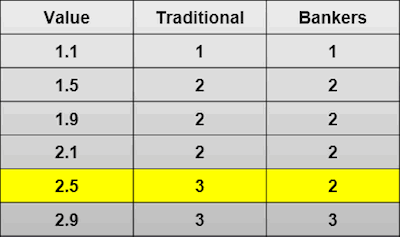
In the world of data management and calculation, rounding numbers is a common operation that seems straightforward at first glance. However, when comparing the rounding method used in Microsoft Access to the traditional numeric rounding taught in schools, significant differences emerge. These differences can have important implications for data accuracy.
Microsoft, in the official Access Round documentation, states:
Traditional Rounding: The School Method
Basic Principles
In educational settings, students are typically introduced to a simple and intuitive rounding method:
- If the digit to the right of the rounding place is 5 or greater, round up.
- If the digit is 4 or less, round down.
This method is straightforward and easy to understand, making it ideal for teaching basic mathematics.
Examples of Traditional Rounding
To illustrate:
- 2.5 rounds to 3
- 3.5 rounds to 4
- 4.4 rounds to 4
- 4.6 rounds to 5
- 5.525 rounds to 5.53
- 5.535 rounds to 5.54
Microsoft Access Rounding: The Banker’s Method
Microsoft Access employs a different rounding approach known as “banker’s rounding” or “round-to-even” method. This method is designed to reduce bias in large sets of rounded numbers.
How Banker’s Rounding Works
The key difference lies in handling numbers that end in .5:
- If the digit to the left of .5 is odd, round up.
- If the digit to the left of .5 is even, round down.
For all other cases (not ending in .5), it follows the traditional rounding rules.
Another way of explaining the principle is to state:
Examples in Microsoft Access
Using the Round() function in Access:
- Round(2.5, 0) rounds to 2
- Round(3.5, 0) rounds to 4
- Round(4.4, 0) rounds to 4
- Round(4.6, 0) rounds to 5
- Round(5.525, 2) rounds to 5.52
- Round(5.535, 2) rounds to 5.54
Notice the differences, highlighted in red, with traditional rounding.
Rationale Behind Banker’s Rounding
From what I could gather on the subject of Banker’s Rounding, the reasoning behind this approach includes:
- In traditional rounding, always rounding .5 up can introduce a slight upward bias over many calculations. Banker’s rounding aims to distribute this rounding evenly.
- Over a large dataset, it tends to provide a more accurate average.
- Particularly useful in financial and accounting applications where small biases can accumulate to significant amounts.
Needless to say, it is fair to say that most novice users and developers familiar with traditional rounding may be surprised by Access’s results, leading to confusion or errors if not properly understood.
Alternatives and Solutions in Microsoft Access
For users who need traditional rounding or other specific rounding behaviors, several options are available:
Custom VBA Functions
Developers can create custom functions in VBA to implement traditional rounding or any other desired rounding method. Example VBA function for traditional rounding:
Function TraditionalRound(dNumber As Double, iDecimalPlaces As Integer) As Double
    TraditionalRound = Round(dNumber * 10 ^ iDecimalPlaces + 0.5, 0) / 10 ^ iDecimalPlaces
End Function
SQL Alternatives
SQL queries can be crafted to achieve traditional rounding:
SELECT (Int(YourNumber * 10 + 0.5) / 10) AS RoundedNumber
FROM YourTable;
Rounding to Specific Intervals
Access provides formulas for rounding to nearest intervals, which can be useful in certain scenarios:
Round(number / interval, 0) * interval
Using Int() or Fix() Functions
These functions can be used for always rounding down, which might be preferable in some scenarios:
Int(3.7) = 3
Fix(3.7) = 3
The difference between Microsoft Access’s rounding and traditional numeric rounding is more than just a technical curiosity. It has real implications for data accuracy, financial calculations, and user expectations. By understanding these differences, database developers and users can make informed decisions about how to handle rounding in their applications, ensuring accuracy and consistency in their data management and analysis tasks