
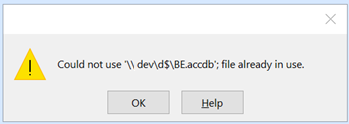
As of Patch Tuesday, Dec. 14th, 2021, there is a new Access file lock ‘bug’ as several threads have started popping up relating to error messages, such as:
This file is in use. Enter a new name or close the file that’s open in another program
Error 3050: Could not lock file.
in which longstanding databases no longer will open, can no longer be shared.
Here are a couple threads on the subject (there are many, many more, simple Google to find them):


If you are suddenly experiencing such an issues, please post a comment with details. Also, please use the Feedback command within Access itself to send as much information as possible (OS, Access build, bitness, update channel, …) to the Access Dev Team and be sure to include your e-mail address so MS can followup with you if need be!
Officially From Microsoft
Microsoft created a page on the subject, so feel free to use the link below to consult it.
What’s Been Fixed
From the above webpage, the following is how things stand as of 2022-02-04:
Microsoft has finally started releasing another update to fix what the first fix did not fix! As it stands right now, they seem to have release a ‘proper’ fix for:
- Office 2013 (KB 5002151)
- Office 2016 (KB 5002138)
- Office LTSC 2019 (Version 1808, build 10382.20034)
- Office LTSC 2021 (Version 2108, build 14332.20216)
- Office 2016 C2R (Version 2112, build 14729.20248)
- Office 2019 Consumer (Version 2112, build 14729.20248)
- Office 2021 Consumer (Version 2112, build 14729.20248)
- Microsoft 365 Apps Current Channel (Version 2112, build 14729.20248)
- Microsoft 365 Apps Monthly Enterprise Channel (Version 2111, build 145701.20290 & Version 2110, build 14527.20364)
- Microsoft 365 Apps Semi-Annual Enterprise Channel (Preview) (Version 2108, build 14326.20738)
- Microsoft 365 Apps Semi-Annual Enterprise Channel (Version 2108, build 14326.20738)
- Microsoft 365 Apps Semi-Annual Enterprise Channel Extended (Version 2008, build 13127.21886)
It is interesting how the fixes for different versions are being released on different timelines. Makes me think of 2 & 3 tier health care system, different class of citizens. Some people get the good stuff, some get okay help and the rest of you are simply out of luck! 🙂 Tell me it isn’t so Microsoft!
DFS-N
Short file names
Mapped drives
Hard links, Junctions and Symbolic linksAccess Dev Team
So clearly some major networking issues remain to be fixed! This is why I do not understand how Microsoft has already labelled the issue as ‘Fixed’ on their official page on the matter. It isn’t fixed!!!!
So, should you be one of those lucky people that continue to experience the issue after updating to the most recent build number, then try directly linking your tables using IP based paths (eliminating all networking layers). If that still doesn’t work then your only solution remains to disable automatic updates and then rollback your installation to a previously stable build number.
There May Be More To This Story
I have had several sources now formally state, after confirming, that KB5002115 and KB5002124 both also contribute to this issue as well. So review some of the comments below
To be more specific, this was causing the database to throw a “cannot lock file” error when opening a Word template that relied on that database. KB5002099 broke it, KB5002115 breaks it too.
We blocked 5002099 on our update server, but the fact that 5002115 breaks it too has our network admin worried that whatever broke it in 5002099 may be cumulative at this point.
Which is very worrisome and very much in character from Microsoft…Shaun -- Coments below
or consult Access – did we get hit with another bad update?
Here’s the response I received from Microsoft on the subject, so hopefully it may help a few of you out there:
The full fix for 2013/2016 MSI will be released in the Windows Update catalog in the February update (probably February 1st), but there will be an update available in the download center before then (customers can contact customer support to get the link for this update when it is available).
So you may wish to keeps your eyes open for these 2 extra updates as well until Microsoft properly fixes the issue.
Other Side Effects Of This Bug
Be forewarned that other issues have now surfaced caused by this same bug. Many people are reporting that the OpenDatabase method no longer works and also reports an Error 3050: Cannot lock file. So the same issues apply to automation as well, sadly.
For those of you suffering from this issue through automation, you may like to look over Mike Wolfe’s latest article in which he provides an untested potential workaround based on a discussion we had with Shane Groff of the Access Dev Team.

A Little Back History
The issue has now officially been deemed a bug caused by some of Patch Tuesday’s security updates, specifically:
We are working on a fix, and will deliver it as quickly as possible.Shane Groff - Access Dev Team
- KB5002104 for Office 2013
- KB5002099 for Office 2016
- Office 2019 Version 1808, build 10381.20020 revert to 10380.20037
- Office LTSC 2021 Version 2108, build 14332.20204 revert to 14332.20176
and for Microsoft365 users, the build numbers of concern are:
- Current Channel Version 2111, build 14701.20248 revert to 14701.20226
- Monthly Enterprise Channel Version 2110, build 14527.20340 revert to 14430.20342
- Monthly Enterprise Channel Version 2109, build 14430.20380 revert to 14430.20342
- Semi-Annual Enterprise Channel (Preview) Version 2108, build 14326.20692 revert to 14326.20600
- Semi-Annual Enterprise Channel Version 2102, build 13801.21086 revert to 13801.21050
- Semi-Annual Enterprise Channel Version 2008, build 13127.21842 revert to 13801.21050
I’ve added what build no you should try reverting to so as to save you the time of figuring it out, but you can also consults the links below for complete listing of all historical build numbers.
So uninstall these and things should return to normal. Remember, once you remove the updates or rollback to a prior build no., be sure to stop all automatic updates or you will find yourself in the exact same situation very shortly!
Which PCs Need to be Rolled Back?
The version of Office installed on the machine that holds the back end database isn’t relevant, unless it is being used to open the back end database.Shane Groff - Access Dev Team
So all the PCs running Access need to be rolled back and not necessarily the servers housing the back-end, unless the server itself is also used to run Access. IMHO, rollback all your PCs, have them all running the same build and then disable updates until this all gets sorted out.
I would like to thank Shane Groff from the Access Dev Team for sharing this information so we could try and mitigate the issue as quickly as possible.
Feel free to leave me a comment below to let me know if this latest update fixes the issue for you.
As always, I will update this article as new information become available.
A Few Resources on the Subject

Access 2013 version 15.0.5407.1000 32-bit
Been working for years. Now only single user can open database. All others get “file in use” error.
Database BE is on a network share. The first user does open a lock file.
What a damned mess again from Microsoft.
Hi, we have the same “impossible to lock file” problem on many of our applications after the update. Can you tell me which KB is involved? Thank you.
Access 2016 16.0.5224.1000 64 bit
Split database, each user separate front end. No problems until this morning. Unlike other reports here, it seems no-one can open it without Could not lock file error.
Hi,
For those who use access runtime, here are the KB to uninstall:
RUNTIME 2013: KB5002104
RUNTIME 2016: KB5002099
We have found the culprit for our problem!
My team have found that the problem was in security update for MS office 2016 (KB5002099)
After uninstall problem is solved
Correct.
The same solution worked for us.
We have an access application with a split front and back end database in use on over 200 sites. It started to hit us about 1/2 hour ago.
Looks like we’re in for a busy day
Sadly I do not understand how to uninstall the problem but my computer can no longer be used to open access, and I don´t even know how to prevent more users from being locked out. we have our backenon a linux samba share. I do not know if this is why they never saw this problem before they desided to destroy my life today.
Henrik,
Look at the links I provided in the ‘A Few Resources on the Subject’ section of the article. Those links explain how to uninstall the updates, or revert the build no depending on the version of Access your users have.
As for ‘I do not know if this is why they never saw this problem before’, no, you never saw it before because the problematic updates only came out yesterday. This is a new issue.
Daniel,
Thanks so much for digging deep on this and keeping us posted on the changes. I’ve got a number of clients that fall within the parameters of this, some already affected since late in the day yesterday. Hopefully the remainder will be able to disable their Office Updates today.
Really appreciate all the work you do with these situations to keep us “in the loop”.
Many thanks!
Andrew
Below is the command line that I used for each workstation this morning. (2016 version click to run)
1. Close all MSOffice applications
2. At an elevated command prompt, run the following line (with quotes)
3. “C:\Program Files\Common Files\microsoft shared\ClickToRun\OfficeC2RClient.exe” /update USER displaylevel=True forceappshutdown=true updatetoversion=16.0.14701.20226
4. When finished, check the version number in the about section of the msoffice application (should be 20226-Dec 3rd update)
5. Disable MSOffice updates temporarily.
Hopes this helps everyone,
Paul
Just be careful, the build number to apply will depend on your update channel.
thanks for this work around, worked great, had to change 10 computers
MS Access for Microsoft 365 MSO (Version 2110 Build 16.0.14527.20332)
We began having the same issue this morning. The locking record persists even after the user has closed the database (either front or back end). Only allowing one user to use at a time. Same error message occurs when a linked Excel workbook opens.
We have the same issue. Trying to fix it, thanks for all the posts with what to do.
Looks like MS has done something to fix this problem. Our Office/Access 2013 was not working early this morning, but is working now (9am MST) (Windows 10 clients, Server 2016 backend). I can’t tell what MS did to fix this. How in the world did this ever get by their QC??
Great news and thank you for the update!
Odd that MS would not have communicated that they fixed it to the MVPs? Isn’t amazing how they can impact your PCs without even issuing another update to fix the first one! It’s magic.
Unfortunately the problem persists on version 13801.21806 (SemiAnnual Enterprise channel) as of 9:30 AM MST.
In my experience, the problem only occurs if the database is on a network share (whether via UNC or mapped drive). When the database is on a local drive, there are no obvious problems. This is the same as yesterday.
Yes, build 13801.21086 is known as having this bug, you need to revert your build to 13801.21050 or earlier.
Found out that some of the office PCs had not updated Office 2013, so they still worked.
For those that did update, I had to uninstall KB5002104 (Office 2013). Then msaccess worked again.
No help yet from Microsoft.
Thanks for posting. Been trying to troubleshoot this error since late last week and was pulling my hair out.
Thank You!!! At least now I know that I’m not going crazy. Good work.
Microsoft has a posting on this now. Status: investigating.
https://support.microsoft.com/en-us/office/access-error-could-not-use-path-to-database-accdb-file-already-in-use-6cbc1560-62c2-46e7-9980-d079a46f5acc
Yep, came across this problem with one of my users (only one where there are at least 15 people sharing the back-end file). Thank goodness for your blog posts Daniel. I’ve become quite reliant on your posts to know what’s going on! Thank you!!
Further … when attempting to open a database already opened by a prior user (shared or exclusive makes no difference), the second user’s attempt fails, but DOES result in the second user deleting the lock file.
Subsequently when the first user closes and reopens the database, no lock file is created (at least not in the same location as the database), yet the second user still CANNOT open the database – even though no lock file exists.
This is unexpected.
Greg
the lock file should contain the user name . but its empty .?? this is the problem that happend after update
Thanks for this page; was going crazy trying to work out what was going wrong with permissions on our network, with no one else reporting this bug. Cheers!!
Does anyone know if I need to unistall this on ALL of our machines? Or just the one holding the BE of the DB?
Cindy
I believe you need to revert/uninstall the problematic updates on all your PCs, but I’ve asked the Dev Team for confirmation. One way or another, it is always a good idea to have all your PCs running the exact same build, so I’ve been reverting all my PCs one way or another.
I’ll report back once I hear back from them.
Thank you so much for the quick response. Cindy
I heard back from the Dev Team and you need to uninstall the updates on the PCs that run Access. So the BE PC isn’t necessarily impacted unless you run Access from that PC as well.
So yes, you need to perform the rollback on all your PCs basically.
We are struggling to revert back to an un-affected version. We are currently running Microsoft® Access® for Microsoft 365 MSO (Version 2110 Build 16.0.14527.20336) 32-bit. (Monthly Enterprise Channel)If I was to un-install the entire office application and re-install would the re-installed version work?
I’d suggest you simply try running 14430.20342 and if that doesn’t work, then review https://docs.microsoft.com/en-us/officeupdates/update-history-microsoft365-apps-by-date.
You may like to review https://www.devhut.net/microsoft-office-uninstall-an-update/
Thank you for this post. It helped tremendously.
I’ve just come across a reported fix that involves turning off updates and then copying “acecore.dll” from a machine that hasn’t been affected to the affected machine. Can anyone confirm that this works because it seems like the quickest fix in my situation.
I’d never recommend manually copy files in this manner. There is a command specifically for rolling back the installation, you are best to use it, but that’s just my view.
Thanks Daniel.
Uninstalling the update listed fixed my 2016 office environment.
Removed KB5002104 for Office 2013. Issue remains for me. Any other items to remove? Thanks.
My machine just got a new version, 13801.21092 (SemiAnnual Enterprise). So far it seems to have resolved the issue.
We are half way there,
In my testing, 13801.21092 now permits multiple users to concurrently access a network based database, but still does not permit a single user from opening multiple different databases concurrently.
Thank you for the feedback, I will pass it along.
Microsoft have issued a fix (believe it or not) for this bug which causes the “3040 Could not lock file” error. The bug was introduced in Office version 16.0.14701.20248, and they were recommending customers to rollback to 16.0.14701.20226, however a new update version 16.0.14701.20262 has been issued and I’ve confirmed that this fixes the bug.
Cheers
John
Indeed, that is what I’ve indicated in my article as well.
Best solution for anyone who cannot wait for a patch or don´t know how to uninstall: take your old Office 2010 Pro and install only Access. In our case, not only works like a charm but it also seems to run the database faster…
No need, Microsoft have rolled out new updates to fix the issue. It is merely a question of manually updating now. Problem solved.
Thanks. Yeez. Almost exactly two years since this exact thing happend. Wake up with a call that Access apps are not working. Lots of people will be busy(or not..) today!
Daniel,
Microsoft have released a fix in the Current Channel as build 14701.20262
I can confirm that this release has fixed the issue in my case.
Full details at https://answers.microsoft.com/en-us/msoffice/forum/all/could-not-lock-file-with-access-build-1470120248/f2b26fe5-6e86-40bc-a469-464c3898df15?page=2&messageId=9362c202-f499-42a3-90d6-7390aa9b1fc9
Thank you for your great handling of this crisis.
Kind regards
Neil
Unfortunatly do we still have the problem after that update
Although the newest release is functional, something about the treatment of lock files is different. Specifically when launching a database from command line or shell object, there seems to be situations where the .laccdb can be deleted even when the database is open.
Scenario 1 (using short names): MSACCESS.EXE “C:\Users\PROFIL~1\username\AppData\Local\Temp\MyDB.accdb”
Scenario 2 (using long names): MSACCESS.EXE “C:\Users\PROFILEDISK\username\AppData\Local\Temp\MyDB.accdb”
Assume that “…\PROFIL~1\…” is the short name (8.3) for “…\PROFILEDISK\…”
Previously, both scenarios produced the same result–which is that the .laccdb could not be deleted.
Now with the new release 13801.21092, using Scenario 1 allows the .laccdb to be deleted even while the database is open. Scenario 2 does not (works like normal).
If you’re relying on techniques like shell’s ExpandEnvironmentStrings() or VBA’s Environ() to get the path to launch a database, both return the short name (8.3) format. I’m not sure what the implications are for deleting the .laccdb while the database is open, but I can’t imagine it’s good.
This is probably not a common scenario, but the new release will require some recoding of existing applications to accommodate this issue.
Thank you for the feedback. I’ve forwarded it along to the Dev Team.
Daniel, thank you very much for keeping us informed. It is greatly appreciated!
Any word about whether Microsoft will revise/remove the two KBs for non Click-to-Runs A2013 & A2016? I remember during the Patch Tuesday from Hell November 2019, offending KBs were around for many weeks.
Daniel,
There are reports coming in that the fix isn’t fixed.
https://answers.microsoft.com/en-us/msoffice/forum/all/could-not-lock-file-with-access-build-1470120248/f2b26fe5-6e86-40bc-a469-464c3898df15?page=2&messageId=a42dc6ee-6810-4875-b84b-df38214e81cb
Kind regards
Neil
Thank you for the help with this issue, Daniel.
Unfortunately, it seems like folks with volume licenses of Office are still out in the cold.
On the MS page with the error:
https://support.microsoft.com/en-us/office/error-in-access-when-opening-a-database-on-a-network-file-share-6cbc1560-62c2-46e7-9980-d079a46f5acc
It says, “STATUS: FIXED”. However, there’s no mention of perpetual or volume licenses (2013, 2016, 2019, or LTSC 2021). Hopefully they’ll not just stop there and consider the job done!
Yes, volume licenses has not been patched yet… Do we have to wait till January?
Further to my post on 12/17: In the new release (e.g. 13801.21092 for the semiannual enterprise channel), the error with using short names extends to VBA. For instance, this will return the “could not lock file” error…
DBEngine.CreateWorkspace(“ADMIN”,”ADMIN”,””).OpenDatabase(strPath)
…If strPath is a short name like “C:\Users\PROFIL~1\username\AppData\Local\Temp\MyDB.accdb”.
msaccess 2013. Split database, frontend on user machine (win10 & win7), backend on server.
After unistalling KB5002104 for Office 2013 application is working, allowing multiple users to work simultany as before.
Thanks for the info and your time.
365 Build 14701.20262 still has the problem.
Our temporary workaround was to use full paths instead of the mapped drive paths for linked tables.
Update: used these two commands to rollback to version 20226 from December 3rd:
This worked for me….
I kicked all of the users off of the backend share via computer management from the server.
I deleted any residual lock files from the back end database
I rolled back users from the Latest version of Office 365 Current Channel to this build…
May 24, 2021 Version 2105 (Build 14026.20246)
(You do not need to uninstall office) (Just make a rollback XML then use the update feate in Excel and it will down grade the existing installation)
I disabled Office updates on all endpoints that I rolled back.
All is working again
The above didn’t even require a reboot or log off… Users just could not use office while the downgrade was happening… Takes about 6 minutes on each machine… Note all had SSD drives, so spinning rust will take longer.
Everything continues to work fine and stable with our Access 2010 perpetual version on Win7. We will keep using this setup until the hardware’s wheels fall off.
It’s the same in our environments, especially when the updates are not managed.
“Repairing” the “Click-to-Run” Microsoft 365 Apps for Enterprise 16.0.14701.20262 will also not fix the problem.
We are now thinking about a manual downgrade with “ODT – Office Deployment Tools” to set an older version… or waiting for the fix – it depends on the pressure that we get from our customers 😉
@AJ
365 Build 14701.20262 still has the problem.
Strange, on one pc mapped drive and on the second pc full paths is working, If boths are mapped still the problem is there (Office 64-Bit Versions). Office 32-Bit Version both mapped is working fine.
Thank you so much for this! In my office, we have a split database used by three people, front end on their desktops and backend shared on the server, and the backend is connected to the frontend using UNC paths. The problem just came up over the weekend and we were lost.
After reading this article, I uninstalled KB500209 on all three computers (they’re all using Access 2016) and … NO MORE PROBLEMS!! Two people were able to get in at the same time!
updated all pc’s to build 14701.20262 / rebooted , issue still exists
shared network
Thanks Daniel for all the work you have done on this problem and what you did on the previous “Microsoft Access needs compacting again and again.”
On this latest problem, one of the sites I look after seems to have solved it on the morning after the problem occurred. (At this site, in Australia, the problematic upgrade went in overnight between 21 Jun 2021 and 22 Jun 2021). The site just restored the front and back end databases and the problem (the database allowed only a single user) — no longer occurred.
I’m guessing the more thorough fix you and Microsoft recommend on your site is still required, but would appreciate your advice on this.
What has been established based on various forum threads is that the fix does not work in all cases, what the exact issue is I can not say (it appears to be related to the type of drive Mapping, DFS, …). In such cases, the only solution is to disable Office Automatic Updates and rollback the build no. to a prior stable build. There’s nothing else that can be done.
Sorry. In previous comment I gave dates in June. Should have said 21-Dec-2021 and 22-Dec-2021 (the date of the solstice).
Has anyone experienced an error using code to query the Jet UserRoster (opening a connection to OpenSchema(adSchemaProviderSpecific… ) see https://docs.microsoft.com/en-us/office/troubleshoot/access/determine-who-is-logged-on-to-database.
It appeared suddenly and on various computers at about the same time as the lock file issues and throws the error “Object or provider is not capable of performing the requested operation”.
Hi Drew.
Yes.
I’ve had this problem with the same code on one set of PCs in one organisation. Another group in the same organisation does not have the problem and uses the same code.
The error message “Object or provider is not capable of performing the requested operation” always comes up in response to the execution of the line in the “determine-who-is-logged-on-to-database” you refer to, namely this line:
Set rs = cn.OpenSchema(adSchemaProviderSpecific, , “{947bb102-5d43-11d1-bdbf-00c04fb92675}”)
I wish I could offer a suggestion as to why this line seems to fail on one set of PCs but work on a good number of others, but cannot, and have not found a workaround.
Perhaps we are both making some dumb mistake?
Hopefully someone who reads your entry can help.