
Here’s something I dabbled with years ago, but never truly needed in any way and decided to revisit to help with accessibility to a database I was working on. What am I ‘talking’ about, SAPI (Microsoft Speech API) automation! Using VBA to narrate text.
Why? Well, by narrating content you can help users with poor vision, allow users to do other things while still being able to ingest content by simply listening, and so on.
The Basics of SAPI
Making VBA read to you isn’t very hard at all. You need only create a SAPI object and then invoke the Speak method, that’s it. Thus, it is very easy to create a simple sub to narrate a string, like:
'---------------------------------------------------------------------------------------
' Procedure : SAPI_Narrate_Basic
' Author    : Daniel Pineault, CARDA Consultants Inc.
' Website   : http://www.cardaconsultants.com
' Purpose   : Narrate the specified text using Microsoft Speech API (SAPI)
' Copyright : The following is release as Attribution-ShareAlike 4.0 International
'             (CC BY-SA 4.0) - https://creativecommons.org/licenses/by-sa/4.0/
' Req'd Refs: Late Binding version  -> None required
'             Early Binding version -> Microsoft Speech Object Library (sapi.dll)
'
' Input Variables:
' ~~~~~~~~~~~~~~~~
' sInput            : The string/text to narrate.
'
' Usage:
' ~~~~~~
' Call SAPI_Narrate_Basic("How are you doing today?")
'
' Revision History:
' Rev       Date(yyyy-mm-dd)        Description
' **************************************************************************************
' 1         2022-02-10              Initial Public Release
'---------------------------------------------------------------------------------------
Public Function SAPI_Narrate_Basic(Optional sInput As String)
    On Error GoTo Error_Handler
    #Const SAPI_EarlyBind = False   'True => Early Binding / False => Late Binding
    #If SAPI_EarlyBind = True Then
        Dim oSpVoice          As SpeechLib.SpVoice

        Set oSpVoice = New SpeechLib.SpVoice
    #Else
        Dim oSpVoice          As Object

        Set oSpVoice = CreateObject("SAPI.SpVoice")
    #End If

    oSpVoice.Speak sInput

Error_Handler_Exit:
    On Error Resume Next
    If Not oSpVoice Is Nothing Then Set oSpVoice = Nothing
    Exit Function

Error_Handler:
    MsgBox "The following error has occured" & vbCrLf & vbCrLf & _
           "Error Number: " & Err.Number & vbCrLf & _
           "Error Source: SAPI_Narrate" & vbCrLf & _
           "Error Description: " & Err.Description & _
           Switch(Erl = 0, "", Erl <> 0, vbCrLf & "Line No: " & Erl) _
           , vbOKOnly + vbCritical, "An Error has Occured!"
    Resume Error_Handler_Exit
End Function
Armed with this, you can then use it by calling it like so:
Call SAPI_Narrate_Basic("How are you doing today?")
It’s that easy. Now, your application is talking!
Wanna make your database welcome user’s upon opening the database? How about something like:
Call SAPI_Narrate_Basic("Welcome back " & CreateObject("WScript.Network").UserName)
Let’s Push Things Further!
The above is fine for simple use cases, but I was looking to facilitate narration throughout my database.
A first, horrible, idea was to add buttons next to each control that when pressed would narrate the content, but that is labor intensive and makes the forms excessively busy. So that idea was quickly dismissed.
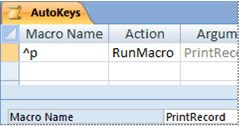
The better approach I came up with was to create a simple AutoKeys macro to launch a procedure that narrates the active control. So, simple I thought to myself.
The AutoKeys Macro
Either create a new macro, or edit your existing AutoKeys macro and add

Close and save. If this is a new macro, be sure to give it the name ‘AutoKeys’.
You can change the assigned keys, presently Ctrl T, by simply altering the ^T value of the Submacro entry.
The VBA SAPI Narration Procedure
So I wanted to create a versatile procedure that could basically handle it all. This is my first run at it, still a bit of a work in progress, but functioning quite nicely so far.
'---------------------------------------------------------------------------------------
' Procedure : SAPI_Narrate
' Author    : Daniel Pineault, CARDA Consultants Inc.
' Website   : http://www.cardaconsultants.com
' Purpose   : Narrate the specified text using Microsoft Speech API (SAPI)
' Copyright : The following is release as Attribution-ShareAlike 4.0 International
'             (CC BY-SA 4.0) - https://creativecommons.org/licenses/by-sa/4.0/
' Req'd Refs: Late Binding version  -> None required
'             Early Binding version -> Microsoft Speech Object Library (sapi.dll)
'Dependencies:
'   Function GetInternationalSetting()
'   https://www.devhut.net/special-characters-and-internationalization-of-an-application/
'
' Input Variables:
' ~~~~~~~~~~~~~~~~
' sInput            : The string/text to narrate.  If omitted, it will narrate the text
'                       of the active control.
' lSpeed            : Speed of the narration. Range between -10 to 10, 0 being normal
'                       speed.
' lVolume           : Narration volume. Range 0 to 100.
' NarratorGender    : The gender of the narrator (Male/Female).
' bNarrateCtrlType  : Whether to narrate the control type
' bNarrateLblCaption: Whether to narrate the control's associated label caption.
'
' Usage:
' ~~~~~~
' Call SAPI_Narrate("How are you doing today?", -3, 85)
' Call SAPI_Narrate("How are you doing today?", -3, 85, "Female", False, True)
' Call SAPI_Narrate -> will narrate the text from the current control
'
' Revision History:
' Rev       Date(yyyy-mm-dd)        Description
' **************************************************************************************
' 1         2022-02-10              Initial Public Release
'---------------------------------------------------------------------------------------
Public Function SAPI_Narrate(Optional sInput As String, _
                             Optional lSpeed As Long = 0, _
                             Optional lVolume As Long = 100, _
                             Optional sNarratorGender As String = "Male", _
                             Optional bNarrateCtrlType As Boolean = True, _
                             Optional bNarrateLblCaption As Boolean = True)
    On Error GoTo Error_Handler
    #Const SAPI_EarlyBind = False    'True => Early Binding / False => Late Binding
    #If SAPI_EarlyBind = True Then
        Dim oSpVoice          As SpeechLib.SpVoice

        Set oSpVoice = New SpeechLib.SpVoice
    #Else
        Dim oSpVoice          As Object
        Const SVSFPurgeBeforeSpeak = 2

        Set oSpVoice = CreateObject("SAPI.SpVoice")
    #End If
    Dim ctrl                  As Access.Control
    Dim aColWidths            As Variant
    Dim vItem                 As Variant
    Dim sDelim                As String
    Dim lColumn               As Long
    Dim i                     As Long
    Dim bHasAsscociatedLabel  As Boolean

    'Commit any change to the form
    Screen.ActiveForm.Dirty = False

    'Set the speed of narration
    If lSpeed < -10 Then lSpeed = -10
    If lSpeed > 10 Then lSpeed = 10
    oSpVoice.Rate = lSpeed

    'Set the narration volume
    If lVolume < 0 Then lVolume = 1
    If lVolume > 100 Then lVolume = 100
    oSpVoice.Volume = lVolume

    With oSpVoice
        'Set the narrator's voice
        '   By Gender
        Set .Voice = .GetVoices("Gender=" & sNarratorGender).Item(0)
        '   By Name
        '    Set .Voice = .GetVoices("Name=Microsoft Zira Desktop").Item(0)
        '   By Item index number
        '    Set oSpVoice.Voice = oSpVoice.GetVoices.Item(0)

        'Narrate
        If Len(sInput) > 0 Then
            .Speak sInput
        Else
            bHasAsscociatedLabel = True
            Set ctrl = Screen.ActiveControl
            Select Case ctrl.ControlType
                Case acCheckBox
                    If bNarrateCtrlType = True Then .Speak "Checkbox"
                    If bNarrateLblCaption = True Then
                        .Speak ctrl.Controls(0).Caption
                        If bHasAsscociatedLabel = True Then .Speak "", SVSFPurgeBeforeSpeak
                    End If
                    .Speak IIf(IsNull(ctrl.Value), _
                               "Null", _
                               Switch(ctrl.Value = True, _
                                      "True", _
                                      ctrl.Value = False, "False"))
                Case acComboBox
                    If ctrl.ColumnCount = 1 Then
                        lColumn = 0
                    Else
                        'Let's determine which column is showing to the user and
                        '   narrate that value.
                        sDelim = GetInternationalSetting("sList")
                        'The next line is to handle a new bug!
                        If InStr(ctrl.ColumnWidths, sDelim) = 0 Then sDelim = ";"
                        aColWidths = Split(ctrl.ColumnWidths, sDelim)
                        For i = 0 To UBound(aColWidths)
                            Debug.Print aColWidths(i)
                            If aColWidths(i) <> 0 Then
                                lColumn = i
                                Exit For
                            End If
                        Next i
                    End If

                    If bNarrateCtrlType = True Then .Speak "Combo box"
                    If bNarrateLblCaption = True Then
                        .Speak ctrl.Controls(0).Caption
                        If bHasAsscociatedLabel = True Then .Speak "", SVSFPurgeBeforeSpeak
                    End If
                    '.Speak ctrl.text
                    .Speak IIf(IsNull(ctrl.Column(lColumn)), _
                               "Null", _
                               ctrl.Column(lColumn))
                Case acCommandButton
                    If bNarrateCtrlType = True Then .Speak "Command button"
                    .Speak ctrl.Caption
                Case acListBox
                    If ctrl.ColumnCount = 1 Then
                        lColumn = 0
                    Else
                        'Let's determine which column is showing to the user and
                        '   narrate that value.
                        sDelim = GetInternationalSetting("sList")
                        'The next line is to handle a new bug!
                        If InStr(ctrl.ColumnWidths, sDelim) = 0 Then sDelim = ";"
                        aColWidths = Split(ctrl.ColumnWidths, sDelim)
                        For i = 0 To UBound(aColWidths)
                            Debug.Print aColWidths(i)
                            If aColWidths(i) <> 0 Then
                                lColumn = i
                                Exit For
                            End If
                        Next i
                    End If

                    If bNarrateCtrlType = True Then .Speak "Listbox"
                    If bNarrateLblCaption = True Then
                        .Speak ctrl.Controls(0).Caption
                        If bHasAsscociatedLabel = True Then .Speak "", SVSFPurgeBeforeSpeak
                    End If
                    For Each vItem In ctrl.ItemsSelected
                        If Not IsNull(vItem) Then
                            .Speak ctrl.Column(lColumn, vItem)
                        End If
                    Next
                Case acTextBox
                    If bNarrateCtrlType = True Then .Speak "Textbox"
                    If bNarrateLblCaption = True Then
                        .Speak ctrl.Controls(0).Caption
                        If bHasAsscociatedLabel = True Then .Speak "", SVSFPurgeBeforeSpeak
                    End If
                    .Speak ctrl.text
                Case Else
                    .Speak "Unsupported control type"
            End Select
        End If
    End With

Error_Handler_Exit:
    On Error Resume Next
    If Not ctrl Is Nothing Then Set ctrl = Nothing
    If Not oSpVoice Is Nothing Then Set oSpVoice = Nothing
    Exit Function

Error_Handler:
    If Err.Number = 2467 Then    'No Label for the ActiveControl
        bHasAsscociatedLabel = False
        Resume Next
    Else
        MsgBox "The following error has occured" & vbCrLf & vbCrLf & _
               "Error Number: " & Err.Number & vbCrLf & _
               "Error Source: SAPI_Narrate" & vbCrLf & _
               "Error Description: " & Err.Description & _
               Switch(Erl = 0, "", Erl <> 0, vbCrLf & "Line No: " & Erl) _
               , vbOKOnly + vbCritical, "An Error has Occured!"
        Resume Error_Handler_Exit
    End If
End Function
More Details On The VBA Procedure
Pay attention to the fact, as indicated in the procedure header, this function requires a copy of my GetInternationalSetting() function which can be obtained from

Our current usage is very straightforward, calling the SAPI_Narrate function in our macro without providing any of the optional input arguments. That said, the function does incorporated various optional arguments into the procedure that I developed while playing around with SAPI to demonstrate how certain properties could be controlled/set, things like:
- The speed of narration, or Rate as Microsoft termed it; lSpeed
- The Volume of the narrator; lVolume
- The narrator’s Voice (yes, you can change the voice); NarratorGender
So feel free to try them out when making function calls to see their effects.
Changing the Narrator’s Voice
In my procedure I used the ‘sNarratorGender’ input argument to set the narrator’s voice (‘Male’ or ‘Female’). That said, you can set it by name, by index no, … I’ve commented out a few examples of how it can be done.
That said, you’re probably asking yourself: “How can I determine which voices are installed/available on my PC?”
Below is a simple helper sub routine that enumerates that information for you. It is a variation of a Microsoft sample code in which I output extra information to make it more complete:
'---------------------------------------------------------------------------------------
' Procedure : SAPI_EnumerateVoices
' Author    : Daniel Pineault, CARDA Consultants Inc.
' Website   : http://www.cardaconsultants.com
' Purpose   : Enumerate available Microsoft Speech API (SAPI) voices
' Copyright : The following is release as Attribution-ShareAlike 4.0 International
'             (CC BY-SA 4.0) - https://creativecommons.org/licenses/by-sa/4.0/
' Req'd Refs: Late Binding version  -> None required
'             Early Binding version -> Microsoft Speech Object Library (sapi.dll)
' Loosely based off the Form_Load() event code from:
'   https://docs.microsoft.com/en-us/previous-versions/windows/desktop/ms723614(v=vs.85)
'
' Usage:
' ~~~~~~
' SAPI_EnumerateVoices
'   Returns -> Output to VBE Immediate Window
'
' Revision History:
' Rev       Date(yyyy-mm-dd)        Description
' **************************************************************************************
' 1         2022-02-11              Initial Public Release
'---------------------------------------------------------------------------------------
Public Sub SAPI_EnumerateVoices()
    On Error GoTo Error_Handler
    #Const SAPI_EarlyBind = False   'True => Early Binding / False => Late Binding
    #If SAPI_EarlyBind = True Then
        Dim oSpVoice          As SpeechLib.SpVoice
        Dim oVoice            As SpeechLib.ISpeechObjectToken

        Set oSpVoice = New SpeechLib.SpVoice
    #Else
        Dim oSpVoice          As Object
        Dim oVoice            As Object

        Set oSpVoice = CreateObject("SAPI.SpVoice")
    #End If

    'Attributes: Gender, Age, Name, Language, Vendor
    For Each oVoice In oSpVoice.GetVoices
        With oVoice
            Debug.Print .GetAttribute("Name"), _
                        .GetAttribute("Gender"), _
                        .GetAttribute("Age"), _
                        .GetAttribute("Language"), _
                        .GetAttribute("Vendor"), _
                        .ID, _
                        .GetDescription
        End With
    Next

Error_Handler_Exit:
    On Error Resume Next
    If Not oVoice Is Nothing Then Set oVoice = Nothing
    If Not oSpVoice Is Nothing Then Set oSpVoice = Nothing
    Exit Sub

Error_Handler:
    MsgBox "The following error has occured" & vbCrLf & vbCrLf & _
           "Error Number: " & Err.Number & vbCrLf & _
           "Error Source: SAPI_EnumerateVoices" & vbCrLf & _
           "Error Description: " & Err.Description & _
           Switch(Erl = 0, "", Erl <> 0, vbCrLf & "Line No: " & Erl) _
           , vbOKOnly + vbCritical, "An Error has Occured!"
    Resume Error_Handler_Exit
End Sub
running the sub you will get an output similar to:
Microsoft David Desktop Male Adult 409 Microsoft HKEY_LOCAL_MACHINE\SOFTWARE\Microsoft\Speech\Voices\Tokens\TTS_MS_EN-US_DAVID_11.0 Microsoft David Desktop - English (United States)
Microsoft Zira Desktop Female Adult 409 Microsoft HKEY_LOCAL_MACHINE\SOFTWARE\Microsoft\Speech\Voices\Tokens\TTS_MS_EN-US_ZIRA_11.0 Microsoft Zira Desktop - English (United States)
from which you can extract the information you need to set SAPI voices.
How it All Works
By assigning an AutoKeys to the VBA procedure as we did, the user can now simply press ‘Ctrl T’ and Access will narrate the information for the active control. SO the user can be on any form and simply press ‘Ctrl T’ (or whatever key sequence you assign to your submacro) and it will read aloud the label and control text. Pretty cool if you ask me and it simply requires a macro and a single procedure to make it all happen!
Other Uses
The skies the limit here! My primary focus was an Access database, but SAPI can be used anywhere VBA exists. For instance, a great use for such functionality could be to narrate e-mails to someone with poor vision. So let your creativity flourish and play around with it and see how it can help.
Code Features
This code
- can be used as both Early or Late Binding, the choice is yours and set by changing the value of the SAPI_EarlyBind constant.
- is architecture/bitness independent (works in both 32 and 64-bit installations)
- is application independent (should work in any VBA applications – Access, Excel, Outlook, PowerPoint, Word, …)
Let’s Push Things Even Further!
I received the following comment about the article:
So I thought I’d see what could be done. It didn’t take too much work to make this possible, so I thought I’d share it here for everyone to benefit from.
The AutoKeys Macro
To be able to add such functionalities, we have to create a few new key sequences in our AutoKeys macro to act as triggers for such actions: Pause, Resume, Stop. Thus, I altered my AutoKeys macro to:

The Code
To make this work, I had to firstly, make the SAPI object a public variable so I could use it in multiple procedures and then I had to create separate Pause, Resume and Stop procedures. You’ll also notice that I now include the Asynch inpuit argument when calling the Speak method. In the end, the code then becomes:
#Const SAPI_EarlyBind = True    'True => Early Binding / False => Late Binding
#If SAPI_EarlyBind = True Then
    Dim oSpVoice              As SpeechLib.SpVoice
#Else
    Dim oSpVoice              As Object
#End If


'---------------------------------------------------------------------------------------
' Procedure : SAPI_Narrate
' Author    : Daniel Pineault, CARDA Consultants Inc.
' Website   : http://www.cardaconsultants.com
' Purpose   : Narrate the specified text using Microsoft Speech API (SAPI)
' Copyright : The following is release as Attribution-ShareAlike 4.0 International
'             (CC BY-SA 4.0) - https://creativecommons.org/licenses/by-sa/4.0/
' Req'd Refs: Late Binding version  -> None required
'             Early Binding version -> Microsoft Speech Object Library (sapi.dll)
'Dependencies:
'   Function GetInternationalSetting()
'   https://www.devhut.net/special-characters-and-internationalization-of-an-application/
'
' Input Variables:
' ~~~~~~~~~~~~~~~~
' sInput            : The string/text to narrate.  If omitted, it will narrate the text
'                       of the active control.
' lSpeed            : Speed of the narration. Range between -10 to 10, 0 being normal
'                       speed.
' lVolume           : Narration volume. Range 0 to 100.
' NarratorGender    : The gender of the narrator (Male/Female).
' bNarrateCtrlType  : Whether to narrate the control type
' bNarrateLblCaption: Whether to narrate the control's associated label caption.
'
' Usage:
' ~~~~~~
' Call SAPI_Narrate("How are you doing today?", -3, 85)
' Call SAPI_Narrate("How are you doing today?", -3, 85, "Female", False, True)
' Call SAPI_Narrate -> will narrate the text from the current control
'
' Revision History:
' Rev       Date(yyyy-mm-dd)        Description
' **************************************************************************************
' 1         2022-02-10              Initial Public Release
' 2         2022-02-17              Upgrade per Comment
'                                       Added ability to Pause, Resume & Stop
'---------------------------------------------------------------------------------------
Public Function SAPI_Narrate(Optional sInput As String, _
                             Optional lSpeed As Long = 0, _
                             Optional lVolume As Long = 100, _
                             Optional sNarratorGender As String = "Male", _
                             Optional bNarrateCtrlType As Boolean = True, _
                             Optional bNarrateLblCaption As Boolean = True)
    On Error GoTo Error_Handler
    #If SAPI_EarlyBind = True Then
        If oSpVoice Is Nothing Then
            Set oSpVoice = New SpeechLib.SpVoice
        End If
    #Else
        Const SVSFlagsAsync = 1
        Const SVSFPurgeBeforeSpeak = 2

        If oSpVoice Is Nothing Then
            Set oSpVoice = CreateObject("SAPI.SpVoice")
        End If
    #End If
    Dim ctrl                  As Access.Control
    Dim aColWidths            As Variant
    Dim vItem                 As Variant
    Dim sDelim                As String
    Dim lColumn               As Long
    Dim i                     As Long
    Dim bHasAsscociatedLabel  As Boolean

    'Commit any change to the form
    Screen.ActiveForm.Dirty = False

    'Set the speed of narration
    If lSpeed < -10 Then lSpeed = -10
    If lSpeed > 10 Then lSpeed = 10
    oSpVoice.Rate = lSpeed

    'Set the narration volume
    If lVolume < 0 Then lVolume = 1
    If lVolume > 100 Then lVolume = 100
    oSpVoice.Volume = lVolume

    With oSpVoice
        'Set the narrator's voice
        '   By Gender
        Set .Voice = .GetVoices("Gender=" & sNarratorGender).Item(0)
        '   By Name
        '    Set .Voice = .GetVoices("Name=Microsoft Zira Desktop").Item(0)
        '   By Item index number
        '    Set oSpVoice.Voice = oSpVoice.GetVoices.Item(0)

        'Narrate
        If Len(sInput) > 0 Then
            .Speak sInput
        Else
            bHasAsscociatedLabel = True
            Set ctrl = Screen.ActiveControl
            Select Case ctrl.ControlType
                Case acCheckBox
                    If bNarrateCtrlType = True Then .Speak "Checkbox"
                    If bNarrateLblCaption = True Then
                        .Speak ctrl.Controls(0).Caption
                        If bHasAsscociatedLabel = True Then .Speak "", SVSFPurgeBeforeSpeak
                    End If
                    .Speak IIf(IsNull(ctrl.Value), _
                               "Null", _
                               Switch(ctrl.Value = True, _
                                      "True", _
                                      ctrl.Value = False, "False"))
                Case acComboBox
                    If ctrl.ColumnCount = 1 Then
                        lColumn = 0
                    Else
                        'Let's determine which column is showing to the user and
                        '   narrate that value.
                        sDelim = GetInternationalSetting("sList")
                        'The next line is to handle a new bug!
                        If InStr(ctrl.ColumnWidths, sDelim) = 0 Then sDelim = ";"
                        aColWidths = Split(ctrl.ColumnWidths, sDelim)
                        For i = 0 To UBound(aColWidths)
                            Debug.Print aColWidths(i)
                            If aColWidths(i) <> 0 Then
                                lColumn = i
                                Exit For
                            End If
                        Next i
                    End If

                    If bNarrateCtrlType = True Then .Speak "Combo box"
                    If bNarrateLblCaption = True Then
                        .Speak ctrl.Controls(0).Caption
                        If bHasAsscociatedLabel = True Then .Speak "", SVSFPurgeBeforeSpeak
                    End If
                    '.Speak ctrl.text
                    .Speak IIf(IsNull(ctrl.Column(lColumn)), _
                               "Null", _
                               ctrl.Column(lColumn)), SVSFlagsAsync
                Case acCommandButton
                    If bNarrateCtrlType = True Then .Speak "Command button"
                    .Speak ctrl.Caption, SVSFlagsAsync
                Case acListBox
                    If ctrl.ColumnCount = 1 Then
                        lColumn = 0
                    Else
                        'Let's determine which column is showing to the user and
                        '   narrate that value.
                        sDelim = GetInternationalSetting("sList")
                        'The next line is to handle a new bug!
                        If InStr(ctrl.ColumnWidths, sDelim) = 0 Then sDelim = ";"
                        aColWidths = Split(ctrl.ColumnWidths, sDelim)
                        For i = 0 To UBound(aColWidths)
                            Debug.Print aColWidths(i)
                            If aColWidths(i) <> 0 Then
                                lColumn = i
                                Exit For
                            End If
                        Next i
                    End If

                    If bNarrateCtrlType = True Then .Speak "Listbox"
                    If bNarrateLblCaption = True Then
                        .Speak ctrl.Controls(0).Caption
                        If bHasAsscociatedLabel = True Then .Speak "", SVSFPurgeBeforeSpeak
                    End If
                    For Each vItem In ctrl.ItemsSelected
                        If Not IsNull(vItem) Then
                            .Speak ctrl.Column(lColumn, vItem), SVSFlagsAsync
                        End If
                    Next
                Case acTextBox
                    If bNarrateCtrlType = True Then .Speak "Textbox"
                    If bNarrateLblCaption = True Then
                        .Speak ctrl.Controls(0).Caption
                        If bHasAsscociatedLabel = True Then .Speak "", SVSFPurgeBeforeSpeak
                    End If
                    .Speak ctrl.text, SVSFlagsAsync
                Case Else
                    .Speak "Unsupported control type"
            End Select
        End If
    End With

Error_Handler_Exit:
    On Error Resume Next
    If Not ctrl Is Nothing Then Set ctrl = Nothing
    'If Not oSpVoice Is Nothing Then Set oSpVoice = Nothing 'This breaks SVSFlagsAsync!
    Exit Function

Error_Handler:
    If Err.Number = 2467 Then    'No Label for the ActiveControl
        'The expression you entered refers to an object that is closed or doesn't exist.
        bHasAsscociatedLabel = False
        Resume Next
    Else
        MsgBox "The following error has occured" & vbCrLf & vbCrLf & _
               "Error Number: " & Err.Number & vbCrLf & _
               "Error Source: SAPI_Narrate" & vbCrLf & _
               "Error Description: " & Err.Description & _
               Switch(Erl = 0, "", Erl <> 0, vbCrLf & "Line No: " & Erl) _
               , vbOKOnly + vbCritical, "An Error has Occured!"
        Resume Error_Handler_Exit
    End If
End Function

Public Function SAPI_Pause()
    If Not oSpVoice Is Nothing Then
        oSpVoice.Pause
    End If
End Function

Public Function SAPI_Resume()
    If Not oSpVoice Is Nothing Then
        oSpVoice.Resume
    End If
End Function

Public Function SAPI_Stop()
    If Not oSpVoice Is Nothing Then
        oSpVoice.Speak vbNullString, SVSFPurgeBeforeSpeak
        Set oSpVoice = Nothing
    End If
End Function
Now, you should be able to pause, resume and stop narrations. I hope that helps answer the question.
A Few Resources on the Subject


Hi Daniel,
Nice work. It would be a helpful feature, especially for long text passages, to stop narration at a certain place in the text and to carry on narrating from this place later. Is it possible to implement in your code?
Regards
Thomas
I’ve updated the article with a ‘Let’s Push Things Even Further!’ section to try and answer your question. I hope it helps.
Thanks