A nice feature to add to any continuous form is the ability to navigate up and down between the records by simply using the keyboard arrow keys. Luckily for us, we have a couple options available to us to make that happen and enhance our user experience.
Changing The Client Settings
As pointed out in the comments below, by Jack Perry, as of Access 2019 we now have the ability to add such functionality to a database by changing a database client setting.
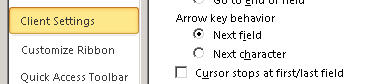
File -> Options -> Client Settings
Under the Editing section (at the top), look for the setting entitled Continuous Form Record Navigation Keys and set it to either Up/Down or Left/Right to suit your personal preference.
Remember, this change needs to be made on each user’s PC and as noted previously is only available in newer versions of Microsoft Access. Although I haven’t tried it yet, since this is a database property you should be able to enable it via some simple automation.
I tried locating information on this setting from the official documentation:
The Coding Approach
Now, simple Google search and we can find the code to add to a form, but I wanted something a little cleaner, a reusable function that I could simply call. And so taking the typically suggested code, I tweaked it into the following:
'---------------------------------------------------------------------------------------
' Procedure : EnableArrowsScroll
' Author    : Daniel Pineault, CARDA Consultants Inc.
' Website   : http://www.cardaconsultants.com
' Purpose   : Enable using the up and down arrows to move between records on a
'             continuous form
' Req'd Refs: None
' The Form's Key Preview property must be set to True for this code to work.
'
' Input Variables:
' ~~~~~~~~~~~~~~~~
' iKeyCode  : Keycode from the source form from the KeyDown event
' frm       : form object to apply the new behavior to
'
' Usage:
' ~~~~~~
' KeyCode = EnableArrowsScroll(KeyCode, Me) 'This is placed in the KeyDown event
'                            'Dont forget to set the Key Preview property to Yes
'
' Revision History:
' Rev       Date(yyyy/mm/dd)        Description
' **************************************************************************************
' 1         2011-07-07              Initial Release
' 2         2017-04-08              Added DefaultView check
'---------------------------------------------------------------------------------------
Public Function EnableArrowsScroll(ByVal iKeyCode As Integer, frm As Access.Form) As Integer
    On Error GoTo Error_Handler

    If frm.DefaultView = 1 Then    'Only process for Continuous forms
        Select Case iKeyCode
            Case vbKeyDown
                '            If CurrentRecord <> RecordsetClone.RecordCount Then 'Restrict to existing records
                If frm.NewRecord = False Then    'Allow going to new record for data entry
                    DoCmd.GoToRecord , , acNext
                End If
                EnableArrowsScroll = 0
            Case vbKeyUp
                If frm.CurrentRecord <> 1 Then
                    DoCmd.GoToRecord , , acPrevious
                End If
                EnableArrowsScroll = 0
            Case Else
                EnableArrowsScroll = iKeyCode
        End Select
    Else
        EnableArrowsScroll = iKeyCode
    End If

Error_Handler_Exit:
    On Error Resume Next
    If Not frm Is Nothing Then Set frm = Nothing
    Exit Function

Error_Handler:
    If Err.Number <> 2105 Then
        MsgBox "The following error has occurred" & vbCrLf & vbCrLf & _
               "Error Number: " & Err.Number & vbCrLf & _
               "Error Source: EnableArrowsScroll" & vbCrLf & _
               "Error Description: " & Err.Description & _
               Switch(Erl = 0, "", Erl <> 0, vbCrLf & "Line No: " & Erl) _
               , vbOKOnly + vbCritical, "An Error has Occurred!"
    End If
    Resume Error_Handler_Exit
End Function
Then we can call the above with a single line of code in any Form’s On Key Down event, like:
Private Sub Form_KeyDown(KeyCode As Integer, Shift As Integer)
    On Error GoTo Error_Handler

    KeyCode = EnableArrowsScroll(KeyCode, Me)

Error_Handler_Exit:
    On Error Resume Next
    Exit Sub

Error_Handler:
    MsgBox "The following error has occurred" & vbCrLf & vbCrLf & _
           "Error Number: " & Err.Number & vbCrLf & _
           "Error Source: Form_KeyDown" & vbCrLf & _
           "Error Description: " & Err.Description & _
           Switch(Erl = 0, "", Erl <> 0, vbCrLf & "Line No: " & Erl) _
           , vbOKOnly + vbCritical, "An Error has Occurred!"
    Resume Error_Handler_Exit
End Sub
The last thing to remember to note, is for the above code to work properly, you must set the form’s Key Preview property to Yes.
Daniel:
Merci pour ton exemple. Je l’ai essayé. C’est bon, mais je ai du changé les “Docmd.GoToRecord … ” á des “Formreference.Recordset …”. Je ne sais pas pourquoi, mais les Docmd.GoToRecord ont donné l’erreur: “You can’t go to the specified record…”, le nombre d’erreur 2105.
Andy Rice
‘—————————————————————————————
‘ Call From : A continous form KeyDown event.
‘ MAKE SURE TO SET THE form’s Key Preview property to Yes.
‘
‘ Purpose : Move up or down with the arrow keys.
‘
‘ Parameters: A reference to the current form.
‘ The KeyCode in the calling form.
‘—————————————————————————————
Public Function HandleContinuousFormKeyDown(ByRef frm As Form, KeyCode As Integer) As Integer
On Error GoTo Error_Handler
With frm
If .ActiveControl.ControlType = acComboBox Then
HandleContinuousFormKeyDown = KeyCode
ElseIf .ActiveControl.ControlType = acTextBox Then
If .ActiveControl.EnterKeyBehavior Then
‘ ControlSource is bound to a Long Text column.
HandleContinuousFormKeyDown = KeyCode
End If
End If
If HandleContinuousFormKeyDown = KeyCode Then
‘ Processed above.
ElseIf KeyCode = vbKeyDown Then
If .Dirty Then
‘ Try to save the current record. Will trigger the calling form’s BeforeUpdate.
.Dirty = False
End If
‘ A cleaner command, but errors with err.Number = 2105: “You can’t go to the specified record.”
‘DoCmd.GoToRecord , , acNext
If .Recordset.EOF = False Then
.Recordset.MoveNext
If .Recordset.EOF _
And .AllowAdditions Then
.Recordset.AddNew
End If
End If
HandleContinuousFormKeyDown = 0
ElseIf KeyCode = vbKeyUp Then
If .Dirty Then
‘ Try to save the current record. Will trigger the calling form’s BeforeUpdate.
.Dirty = False
End If
‘ A cleaner command, but errors with err.Number = 2105: “You can’t go to the specified record.”
‘DoCmd.GoToRecord , , acPrevious
If .Recordset.BOF = False Then
.Recordset.MovePrevious
End If
HandleContinuousFormKeyDown = 0
Else
‘ Handle as a regular key.
HandleContinuousFormKeyDown = KeyCode
End If
End With
Exit Function
Error_Handler:
If Err.Number = 2001 Then
‘ Comes from invalid entry if frm.BeforeUpdate. Err.Description is “You canceled the previous operation.”
Else
‘ Testing:
‘Stop
‘Resume
Call MError.ErrorHandler(“HandleContinuousFormKeyDown in MForm”)
End If
End Function
Woow. thank you so much, it’s a great feature to add to my forms and works great.
Adding this arrow key capability makes a big difference to keyboard users. Thanks for making this robust function.
For 10+ years I have been using a version of this by another MVP and just today I noticed an bug. Because it has On Error Resume Next, if you press the down arrow key when a record is incomplete, no error message is shown to the user. They get stuck with no indication of a problem. I started writing handler for error #2105 but then I found your code that is even more robust.
(original code for reference: http://msgroups.net/microsoft.public.access.formscoding/navigation-in-continuous/83347 )
After using this I noticed that it doesn’t tell the user when they press the up/down arrow on a record that has an incomplete required field or generates a duplicate record. It just does nothing when the up/down arrow is pressed in this situation. How can this be improved to show the user the standard Access error when the user attempts to leave the record?
I did some experimentation with Me.Dirty=False but that ends up causing more issues when the update fails.
great job
thx
Thank you so much for this. Well written and easy to pop in any form.
Go to File/Client Settings and scroll down right pane to “Continuous Form Record Navigation Keys”. “None” seems to be the default so select the “Up/Down” option.
Yes, in newer versions there is now that option. That said, I don’t like changing my user’s client settings and this will change the behavior on all continuous forms. So you have to make sure this is desirable. The VBA approach enables to give the functionality without changing the user’s preferences. It depends on the case and version of Access at hand.
Hi Jack, I’m using Access 2019 and can’t see that option. What version do you refer too?