
Today, I thought I’d add to my library of image manipulation functions
and I set out to see if there was a way, using WIA (Microsoft Windows Image Acquisition Library), to convert an image to black and white, well to be more precise to convert it to grayscale.
I originally searched high and low and could find nothing already done that I could utilize in any way. Oh there’s stuff out there for .net, C/C++, … just not VBA and certainly not relating to using WIA to perform the conversion. So I decided to try and create something myself (I have to stop doing this).
Not knowing a thing about the difference between a color image and a grayscale image (from a technical, pixel, standpoint) I set out to do some research.
I asked in specialized forums, but my questions went unanswered for days, even weeks. It took me a considerable amount of time as I didn’t have the proper terminology for performing searches, but eventually, I found what I was after!

Now, I was ready to build a VBA function to perform the conversion. After many attempts, I manage to create a function!
The Helper Functions
As you will see in the main conversion function, we need to retrieve each pixel’s ARGB data and break it down to convert it. Originally, I started by using the functions found at:

That said, I ended up improving upon the GetAlpha(), GetRed(), GetGreen() & GetBlue() functions by creating a single function to retrieve all 4 values in 1 call. This change alone greatly improved performance.
Below is what I am currently using:
Private Function Get4ByteHex(val) As String
    Dim s                     As String

    s = Hex(val)
    Do While Len(s) < 8
        s = "0" & s
    Loop
    Get4ByteHex = Right(s, 8)
End Function

Private Function Get1ByteHex(val) As String
    Dim s                     As String

    s = Hex(val)
    Do While Len(s) < 2
        s = "0" & s
    Loop
    Get1ByteHex = Right(s, 2)
End Function

Private Function BuildARGB(a, r, g, b) As Long
    Dim s                     As String

    s = "&h" & Get1ByteHex(a) & Get1ByteHex(r) & Get1ByteHex(g) & Get1ByteHex(b)
    BuildARGB = CLng(s)
End Function

Private Function GetARGB(val, ByRef lApha As Long, ByRef lRed As Long, ByRef lGreen As Long, _
                         ByRef lBlue As Long)
    Dim s                     As String

    s = Get4ByteHex(val)
    lApha = CLng("&h" & Left(s, 2))
    lRed = CLng("&h" & Mid(s, 3, 2))
    lGreen = CLng("&h" & Mid(s, 5, 2))
    lBlue = CLng("&h" & Right(s, 2))
End Function
The Conversion Function
The actual conversion function is:
'---------------------------------------------------------------------------------------
' Procedure : WIA_ConvertImageToGrayScale
' Author    : Daniel Pineault, CARDA Consultants Inc.
' Website   : http://www.cardaconsultants.com
' Purpose   : Convert a color image to grayscale
' Copyright : The following is release as Attribution-ShareAlike 4.0 International
'             (CC BY-SA 4.0) - https://creativecommons.org/licenses/by-sa/4.0/
' Req'd Refs: Late Binding  -> None required
'             Early Binding -> Microsoft Windows Image Acquisition Library vX.X
'
' Input Variables:
' ~~~~~~~~~~~~~~~~
' sOriginalFile : Fully qualified path and filename of the color image to convert
' sSaveAsFile   : Fully qualified path and filename for the grayscale output file
' bOverwrite    : Whether it should overwrite the output file if it already exists
'
' Usage:
' ~~~~~~
' ? WIA_ConvertImageToGrayScale("C:\Users\Daniel\flower.png", _
'                               "C:\Users\Daniel\Desktop\flower.png")
'   Returns -> True if the conversion is successful
'              False if the conversion fails
'
' Revision History:
' Rev       Date(yyyy-mm-dd)        Description
' **************************************************************************************
' 1         2022-12-16              Initial Release
'---------------------------------------------------------------------------------------
Public Function WIA_ConvertImageToGrayScale(sOriginalFile As String, _
                                            sSaveAsFile As String, _
                                            Optional bOverwrite As Boolean = False) As Boolean
    On Error GoTo Error_Handler
    #Const WIA_EarlyBind = False    'True => Early Binding / False => Late Binding
    #If WIA_EarlyBind = True Then
        Dim oIF               As WIA.ImageFile
        Dim oIP               As WIA.ImageProcess
        Dim oV                As WIA.Vector

        Set oIF = New WIA.ImageFile
        Set ooIP = New WIA.ImageProcess
    #Else
        Dim oIF               As Object
        Dim oIP               As Object
        Dim oV                As Object

        Set oIF = CreateObject("WIA.ImageFile")
        Set oIP = CreateObject("WIA.ImageProcess")
    #End If
    Dim sSaveAsFileWOExt      As String
    Dim sOriginalFileExt      As String
    Dim i                     As Long
    Dim lAlpha                As Long    '0-255
    Dim lRed                  As Long    '0-255
    Dim lGreen                As Long    '0-255
    Dim lBlue                 As Long    '0-255
    Dim lChannelValue         As Long    '0-255

    'Check to see if the sSaveAsFile exists of not
    If Len(Dir(sSaveAsFile)) > 0 Then
        If bOverwrite = True Then
            Kill sSaveAsFile
        Else
            Exit Function
        End If
    End If

    'Ensure we are outputting with the same extension as the original file
    sSaveAsFileWOExt = Left(sSaveAsFile, InStrRev(sSaveAsFile, ".") - 1)
    sOriginalFileExt = Right(sOriginalFile, Len(sOriginalFile) - InStrRev(sOriginalFile, "."))
    sSaveAsFile = sSaveAsFileWOExt & "." & sOriginalFileExt

    oIF.LoadFile sOriginalFile

    Set oV = oIF.ARGBData 'Retrieve the image's pixel ARGB data
    'Pixel by pixel, convert color ARGB to grayscale ARGB
    For i = 1 To oV.Count
        Call GetARGB(oV(i), lAlpha, lRed, lGreen, lBlue)

        If (lRed = 0 And lGreen = 0 And lBlue = 0) _
           Or (lRed = 255 And lGreen = 255 And lBlue = 255) Then
            'oV(i) = BuildARGB(lAlpha, lRed, lGreen, lBlue)
            'Nothing to do here as it is already white or black
            'Could optionally include cases where  lRed = lGreen = lBlue here as well
            '   but then it wouldn't follow the conversion equation/color tone
        Else
            'lChannel calc can be changed as long as the weights add up to a total of 1
            'produces different shades of gray
            lChannelValue = CLng(0.299 * lRed + 0.587 * lGreen + 0.114 * lBlue) 'YUV
'            lChannelValue = CLng(0.2126 * lRed + 0.7152 * lGreen + 0.0722 * lBlue) 'HDTV/ATSC
'            lChannelValue = CLng(0.2627 * lRed + 0.678 * lGreen + 0.0593 * lBlue) 'HDR
            'lChannelValue = CLng(0.333 * lRed + 0.333 * lGreen + 0.333 * lBlue)
            'lChannelValue = clng(0.22 * lRed + 0.44 * lGreen + 0.34 * lBlue)
            'lChannelValue = CLng(0.12 * lRed + 0.34 * lGreen + 0.54 * lBlue) 'darker grayscale
            lRed = lChannelValue
            lGreen = lChannelValue
            lBlue = lChannelValue
            oV(i) = BuildARGB(lAlpha, lRed, lGreen, lBlue)
        End If
    Next

    'Apply the grayscale ARGB data to the image
    oIP.Filters.Add oIP.FilterInfos("ARGB").FilterID
    Set oIP.Filters(1).Properties("ARGBData") = oV
    Set oIF = oIP.Apply(oIF)

    'Save the file
    oIF.SaveFile sSaveAsFile
    WIA_ConvertImageToGrayScale = True

Error_Handler_Exit:
    On Error Resume Next
    Set oV = Nothing
    Set oIP = Nothing
    Set oIF = Nothing
    Exit Function

Error_Handler:
    MsgBox "The following error has occurred" & vbCrLf & vbCrLf & _
           "Error Source: WIA_ConvertImageToGrayScale" & vbCrLf & _
           "Error Number: " & Err.Number & vbCrLf & _
           "Error DescroIPtion: " & Err.Description & _
           Switch(Erl = 0, "", Erl <> 0, vbCrLf & "Line No: " & Erl) _
           , vbOKOnly + vbCritical, "An Error has Occurred!"
    Resume Error_Handler_Exit
End Function
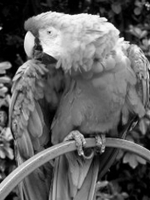
Notice that I included multiple variations of the lChannelValue calculation as you can modify to to suit the depth of color you are looking for. Thus, by modifying the calculation the end results change ever so slightly as demonstrated by the image below.

Usage Example
It's usage is very straightforward and would look like:
? WIA_ConvertImageToGrayScale("C:\Users\Daniel\flower.png", _
                              "C:\Users\Daniel\Desktop\flower.png")
and this will return a value of:
- True if the conversion is successful
- False if the conversion fails
Do note that this process can be a little slow depending on the size of the image being processed as it does have to process each pixel individually! So be patient.
This might be a good process to integrate a progress bar into?!

Other Resources on the Subject
I though had a left a comment on your Youtube video for WIA Resizing about the work I had been doing on WIA recently, but perhaps I forgot to press send.
This is great article – I hadn’t thought about converting images to grey scale. I’ve been looking at manipulating the alpha channel recently – it’s really interesting how much control WIA gives you for so few lines of code.
WIA is packed with capabilities. My biggest frustration is documentation explaining some of this.
Do you have a copy of the WIA SDK (zip file) containing sample scripts, etc and (importantly) the CHM Help File? It gives a bit more information.
I use it for loading PNG files into userform controls, and recently have been exploring ways to use it to display animated GIFs.
No, I do not have an SDK, but I’m going to go searching for it now!
My apologies – I had meant to respond sooner but ’tis the season for traffic jams. It wasn’t quite as easy to search for as I thought it was, and couldn’t remember name of the website. Then I recalled I sitll had the original ZIP file, and thanks to the magic of Alternative Data Streams (as per your video the other day), I managed to get the URL of it! Here it is:
http://vbnet.mvps.org/code/imageapi/mswaidll.htm
(FYI: it has the WIA DLL in the ZIP as well – there are two versions of it (I think), and as I understand it, MS were keen to replace v1 with v2 given that v1 was unintentionally effective at removing DRM protections on digital media!! I mention this in case you AV takes issue with it)
I apologize if my English is not clear enough, I use Google Translate.
First of all I want to thank you for all the most helpful posts, in every topic you get to the root of the matter and are not afraid of hard work, so thank you very much.
What I am trying to do is to determine whether the color of text displayed on an image will be white or black, based on the background of the image, that is, if the background of the image is generally light, the color of the text will be white, if the background is dark, the color of the text should be black.
I found some examples that talk about it (for example here: https://stackoverflow.com/questions/1855884/determine-font-color-based-on-background-color), but many concepts like gamma and linear etc. were not understood by me , and all code examples are not in VBA.
I assume that combining your code with the solutions discussed on stackoverflow may end the matter.
I would greatly appreciate it if you could direct me to the next step.
Thank you for the post! I’m having trouble applying this on mass in PowerPoint. I have a program that takes screenshots from a folder and puts each into its own slide in the PowerPoint. In doing so, I want to both invert the colors and convert them to grayscale. VBA has msoPictureGrayscale built in that works great, but no built in color inversion that I can find.
I’m trying to insert and edit your script to apply to my screenshots. Inversion is done by simply subtracting your color from white, so this is one of the changes I’ve made (see below). The other trouble is defining the variables since I’m not using a single image file.
lRed = 255 – lChannelValue
lGreen = 255 – lChannelValue
lBlue = 255 – lChannelValue
Any ideas would be much appreciated.